

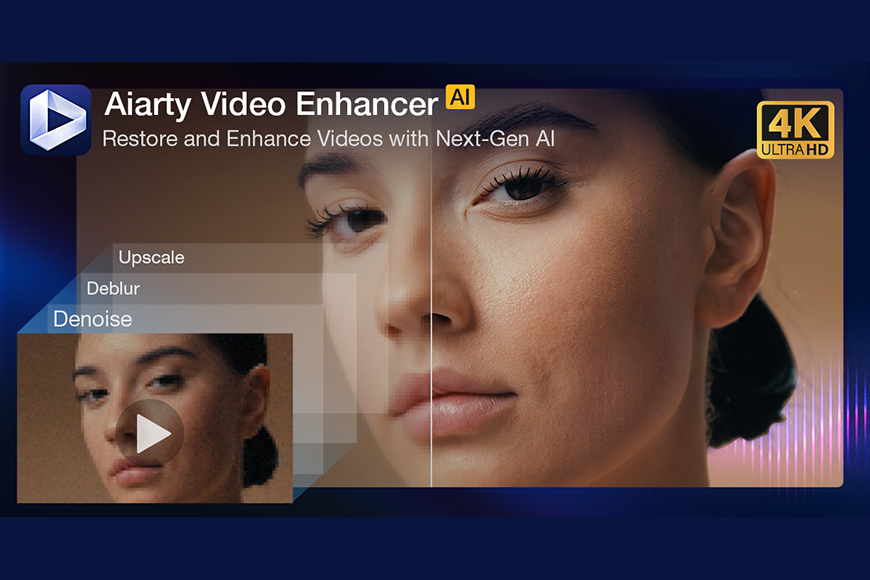
When you’re working on a high-quality design project, the last thing you want is a blurry, low-res video. That’s where an AI video enhancer comes in.
Whether it’s a motion background for a mockup, a product clip for a promo, or a branded reel for a client, Aiarty Video Enhance can be a great ally.
I tried the software firsthand to see how easy it was to use, and how it performed when denoising low-light videos and sharpening blurry ones.
Highly Recommended

Fast, powerful and intuitive video enhancement software with AI upscaling, sharpening, and more.
I also tested its upscale features, created slow-motion effects, and tried the Audio denoise tool.
In this article, I’ll walk you through what Aiarty Video Enhance is and which features it includes, along with some pro tips I discovered while using it.
I’ll end by sharing my honest opinion on whether it’s worth adding to your creative toolkit. So, let’s dive in!
What is Aiarty Video Enhancer?
- Upscale up to 4k
- Top quality and speed
- Turbo function (at lower quality)
- Easy-to-use
- Affordable
- Free trial
- No preview for some features
- No video colorizer
- No video stabilization
You’ve probably heard of Aiarty as an AI image enhancer software (I know you have if you’re one of my regular readers, since I’ve recommended it in this article).
Well, Digiarty Software has now launched an AI video enhancer that’s just as impressive, and that’s the one I’m discussing today.
The software was trained on 120 hours of video and 2.38 million images, which helps it deliver amazing results across all sorts of videos. This is why it’s suited for both professional work and personal use.
Let’s start with the personal use. Many of us have treasured memories captured before every smartphone had a high-resolution camera. Maybe you’ve digitized an old VHS tape or a MiniDV from the family camcorder.
Perhaps you have a blurry video shot with a low-resolution camera phone at a party with lousy lighting, but filled with memorable moments.
With Aiarty Video Enhancer, now you can easily recover details and make the footage look more vibrant, making your trip down memory lane more enjoyable.
For professionals, this software can help you whether you’re a videographer, designer, or content creator. For example, if you’re a graphic designer, you might need to work on website banners, product demos, mock-ups, or motion graphics for a client. Each one of these cases requires crisp, clear videos.
You can save a great deal of time by upscaling, deblurring, and otherwise enhancing videos with Aiarty.
The development team prioritizes speed, and batch-processing tools let you keep working on the next video while rendering the others.
So, while Aiarty Video Enhancer is an AI tool suitable for all users, regardless of their skills or desired use, it’s been especially developed as a solution for creative professionals.
Features of Aiarty Video Enhancer

The first and, I believe, the best feature of this software is the upscale tool. As soon as you import a video, you immediately see a small preview of what you can achieve with the default AI model and a 2x upscaling.
On the options panel, you can choose which AI model you want to use. Each model has different enhancing features, which I’ll discuss in the next section. However, they also depend on the resolution.
The mo-Detail HQ v2 and Smooth HQ v2 models allow you to upscale by up to 4x and to 4K if you prefer a target resolution, or you can input a custom resolution. The Smooth HQ v2 only has a 2x upscaling option.
It’s important that you choose the right model for the best results. However, you also need to consider the desired output resolution.
For example, if your client hands you a 480p product demo, you can now use it on a hi-res display simply by running it through Aiarty.
However, if you need to use the Smooth HQ v2 to enhance it, you might need to process it a few times until you reach the desired resolution.
Alternatively, if you made an amazing AI-generated video for your client, you won’t have any technical issues regarding bad lighting. So, you can easily upscale it to the resolution you want without spending hours using online services.
And speaking of time, you can enable the turbo option to get your upscaled video even faster. Please consider that this is a trade-off with quality, though. You’re not going to get a bad result, but you won’t achieve the best quality you would get at a normal speed.

Upscaling isn’t just about making things bigger, but about making them better.
As the name says, this software is a video enhancer. So, every time you upscale a video, you’re getting the enhancing features.
However, each AI model has its own way of enhancing a video. That’s why it’s crucial to choose the right one.
The mo-Detail HQ v2 is the default model as it works in most situations. It applies a combination of Denoise and Deblur, plus it adjusts the color balance and enhances details. Using this model, all the upscaling options are enabled.

The Smooth HQ v2 offers the same upscaling options, but it delivers better fidelity and color. It’s meant to eliminate flaws in the original video.
Lastly, there’s superVideo vHQ. This AI model is ideal for videos shot in low light. It’s important to note that it only allows a 2x upscaling.

I’ve posted a chart here that summarizes the capabilities of each model. However, you can also find further details inside the program simply by changing the model on the menu—a window with the information will pop up.
This allows you to choose which one you want without having to look elsewhere for the information.
Alternatively, you can try all of them and see which one you like best. Fortunately, you can see the enhancing effects in the live preview, which will save you a lot of time.
The preview is available as a side-by-side display or a before-and-after swipe, and you can also control the zoom.
Whether it’s client-submitted footage, stock clips, or archival material, you can remove noise, sharpen the subject, and create a crisp, polished video asset.
If you only need to enhance the video without changing the resolution, choose the 1x option.

Using the Frame Interpolation feature, you can boost frame rates up to 120fps. This is perfect for smoothing choppy effects you might experience when working with older videos recorded at a lower frame rate.
You can also use it to prevent the jitter that sometimes occurs when looping low-fps videos. Of course, the most popular use of this feature is to add a slow-motion effect.
If this is what you’re after, simply enable the Slow Motion feature. You’ll notice that instead of having the different fps choices you had before, now you can choose between 1/2 SM and 1/4 SM. This will increase the video’s duration by 2x or 4x, respectively.

One of the toughest parts of editing a video that was shot with ambient light is the white balance. Perhaps there was a tungsten light giving a yellowish tone to your image, or a neon one turning everything green.
Don’t worry, though: Aiarty Video Enhancer comes with a color correction tool that’s easy to use, even without prior knowledge. Simply use the Temperature and Tint sliders and see the adjustments in the live preview window.
This way, you only need to adjust the sliders until the colors look right, and you’re done – no editing skills needed.

On top of the Color Correction tool, Aiarty Video Enhance has some other editing tools to help you get your video just how you need it to be.
You can adjust any lighting issues, crop it to a specific aspect ratio, and even flip the video. Using these tools, you get creative control over the final result.
Since everything is controlled with sliders, you can polish your videos even if you’re not an advanced editor. You’ll see the effects live in the preview, which makes everything easier to manage.
Beyond the basic tools, you’ll also find a Force Deinterlace feature, along with the flexibility to select which video track to edit when applicable.
If you’ve ever done event videos or filmed behind-the-scenes materials, you know how background noise can ruin an otherwise perfect scene.
Using Aiarty Video Enhancer, you can easily clean up the audio track and remove the background noise without any expert skills required or a separate audio editor.
To ensure the best results, you can choose from two different AI models: VoiceFilter and RNNoise. The VoiceFilter model has two different versions to choose from.

Batch editing is crucial for an efficient workflow and consistent results. Keep in mind that this feature is not available in the free trial.
Using batch editing, you can import multiple videos at once, then select the upscaling factor and edits you want and apply them to all of the videos by hitting the Batch Export button.
This allows you to move on to other tasks while the job runs in the background. You can see the status of each process on the Task panel and stop any of them at any given time.
Overall Use and Performance

I found Aiarty Video Enhance very easy to use. The interface is very intuitive, and the use of sliders allows anyone, even without any training, to achieve great results.
Considering that all AI video enhancement requires power and time, Aiarty proved quite fast even on my computer, which is neither specialized nor new—I was working on a MacBook Air M1.
Not just that, but it gives you the option to choose lighter AI models if you need to speed things up or you’re device isn’t particularly powerful.
I also tried the Turbo feature, and it saved almost half the time, with no noticeable loss in quality.
Of course, the processing time will vary depending on the length of your video, the adjustments you’re making, and the computer you use. I ran different tests, and applying a slow-motion effect to a short video took less than a minute, and upscaling tasks took 16 minutes.
So, I was overall happy with the speed and performance of the software.
I particularly appreciated how everything is organized and clear in the tasks panel; this makes it easy to keep track of what settings you applied to each video.
Also, whenever you launch the program, it asks if you want to pick up with the videos you were working on or start fresh — I found this quite handy.
The preview renders quickly, which allows you to easily adjust the edits to your liking, plus, you can get an idea of the enhancement you’ll get when upscaling.
Unfortunately, you can’t preview the effects of the Audio Denoise or the Frame Interpolation features. Maybe this will change in the future; remember that this is the first version of the software.
If so, don’t worry—you’ll get all future upgrades included in whatever license you buy.
You can export your files to MP4 and MOV formats. It supports H.264, H.265, and AV1 video output codecs, and AAC or MP3 audio codecs.
If you’re looking for an AI video enhancer that’s affordable, fast, and reliable, make sure you check out Aiarty Video Enhance. You can try it for free!
Value for Money
You can buy a lifetime license for Aiarty Video Enhancer to install and use on up to three computers. In a world full of subscriptions, many users welcome one-time purchase deals.
Most of the time, perpetual licenses have the downside of missing out on future upgrades, but this isn’t the case with Aiarty. When you purchase the license, you’ll have access to all the upgrades and updates.
This type of deal makes Aiarty a strong candidate for anyone who wants it, even for occasional, personal use. And I know what you’re thinking, it must cost a lot of money if it includes all that, right?
Well, I have good news, it doesn’t. The lifetime license is currently on sale at US$165, and the regular price is US$235. If you consider that one of the main competitors, Topaz Labs Video, costs US$33 per month, I’d say the price of Aiarty Video Enhancer is very accessible.
If you’re interested in other Aiarty products for photography, you can get a bundle deal and save even more. All promos I mention here are valid until Nov 20th, 2025 – so, check it out soon.
The best thing is that you don’t have to go in blindly; there’s a free trial. Check out for yourself how it performs on your computer to enhance your videos.
Once you decide to purchase, there’s a 30-day money-back guarantee if you encounter any software problems.
If you’re not ready to get a lifetime license, you can get a standard one, which you pay for yearly.
Highly Recommended

Fast, powerful and intuitive video enhancement software with AI upscaling, sharpening, and more.
Credit : Source Post