
Select headphones in Windows 11 by navigating to Sound Settings and choosing your device.
Whether you’re looking to immerse yourself in the rhythms of your favorite playlist or ensure crisp communication during a virtual meeting, selecting the right headphones on Windows 11 is essential. This experience can be as seamless as a perfectly composed track when done right. Let’s delve into how you can make this process smooth and efficient, ensuring your audio experience is nothing short of spectacular.
Understanding Windows 11 Sound Settings
In Windows 11, the sound settings have been simplified while maintaining robust functionality. Here’s how you can navigate these settings:
-
Access Sound Settings:
- Click on the Start button and go to Settings.
- Select System, then choose Sound.
-
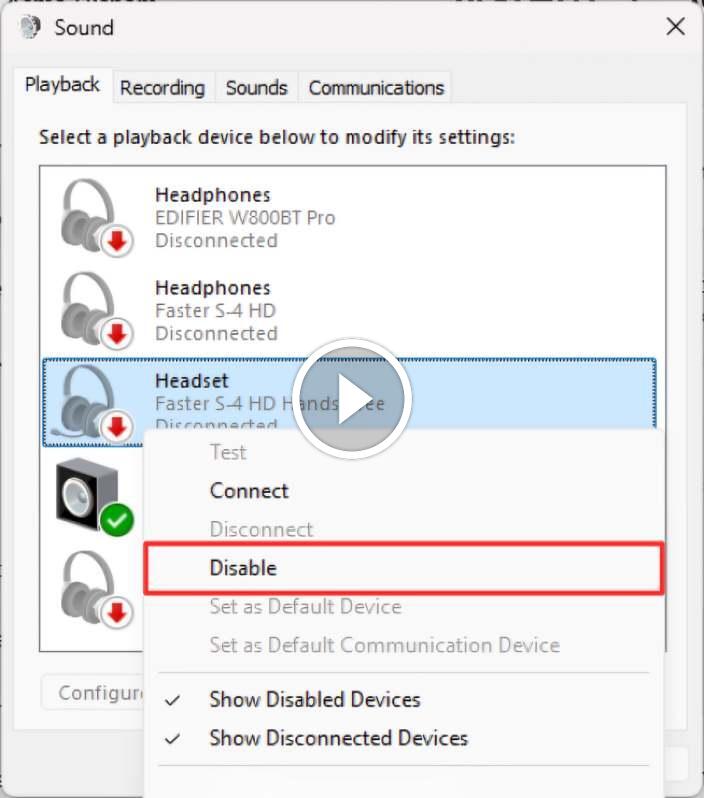
Selecting Your Headphones:
- Under ‘Output’, you’ll see a list of available devices.
- Choose your headphones from the list.
-
Advanced Sound Options:
- Click on ‘All sound devices’ for further customization if needed.
- Adjust the volume or manage specific device properties.
Troubleshooting Common Issues
Sometimes, even straightforward tasks need a bit more finesse. Here’s how to handle potential hurdles:
-
Headphones Not Appearing: Ensure your headphones are properly connected. Try unplugging and reconnecting.
-
Sound Quality Issues: Update your audio drivers through the Device Manager.
-
Volume Too Low: Check both system volume and any physical controls on the headphones.
Customizing Your Audio Experience
Personalizing audio settings can significantly enhance your listening experience:
Frequently Asked Questions of How to Select Headphones in Windows 11
How do I connect Bluetooth headphones?
Navigate to Settings, then Devices, and enable Bluetooth. Pair your headphones from the list of discoverable devices.
What if my headphones aren’t detected?
Check the connection and ensure drivers are updated. Restart your system if the problem persists.
Can I set different audio outputs for different applications?
Yes, in the Advanced sound options, assign specific output devices to different apps.
How do I improve audio quality on Windows 11?
Utilize the in-built enhancements in your sound settings or explore third-party audio enhancement tools.
Are there specific headphones that work best with Windows 11?
Most modern headphones are compatible. Choose based on your preference for wireless or wired and quality features.
Conclusion
Selecting headphones in Windows 11 is all about accessing the right settings and personalizing your audio experience. With the tips and strategies provided, you’re well-equipped to enjoy seamless sound whether it’s for work or leisure.
Ready to maximize your Windows 11 experience? Dive deeper into the settings, experiment with features, and stay tuned for more insights. Consider subscribing for the latest updates and feel free to share your own tips in the comments below!

Credit : Source Post