
The easiest way to connect headphones to PS4 is with a wired 3.5mm headset plugged into the DualShock 4 controller. Bluetooth usually needs an adapter, while USB headsets are the next easiest option for stable audio and chat.
If you want to know how to connect headphones to PS4, the easiest setup is usually the 3.5mm jack on the DualShock 4 controller. Bluetooth and USB options can also work, but the best choice depends on your headset type, your PS4 model, and how much latency you can tolerate.
- Wired first: The controller jack is the simplest and most reliable PS4 option.
- Bluetooth caveat: Most Bluetooth headphones need an adapter to work well.
- USB option: USB headsets can offer easier setup and steadier chat audio.
- Settings matter: Output, input, and volume settings affect sound as much as the headset.
How to Connect Headphones to PS4: What You Need Before You Start
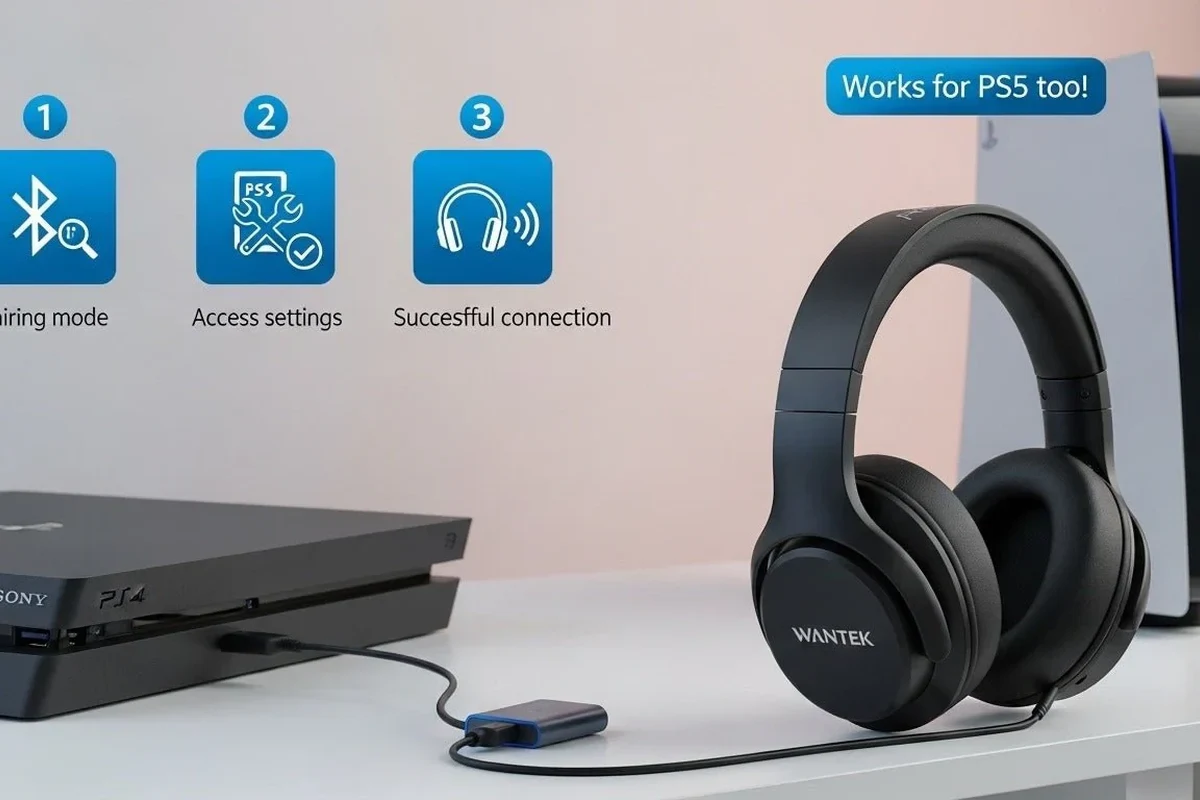
Image source: iwantek.com
Before you plug anything in, it helps to know that PS4 audio setup is not identical for every headphone type. Some connections are simple and reliable, while others need an adapter or extra settings to work properly.
Wired vs. wireless headphones on PS4
Wired headphones are usually the most straightforward option because they connect directly to the controller or console. They also tend to offer lower audio delay, which matters for fast-paced games and party chat.
Wireless headphones can be more comfortable and convenient, but PS4 support is more limited than many people expect. Some Bluetooth models work only through a USB dongle or adapter, while others may not pair at all without a workaround.
If you are still comparing headphone types, our guide to types of headphones explained can help you decide whether over-ear, on-ear, or in-ear models make the most sense for gaming.
Checking your controller, headset, and PS4 model
Start by checking whether your headphones have a 3.5mm plug, USB connection, or Bluetooth support. Then make sure your DualShock 4 controller and PS4 system software are up to date, since outdated firmware can cause connection problems.
It also helps to know which PS4 model you own. Most standard PS4, PS4 Slim, and PS4 Pro setups support the same basic headphone options, but some wireless headsets and dongles behave differently depending on the hardware and software version.
- Headphone connection type
- Controller battery level
- PS4 system software version
- Whether your headset includes a mic
Fastest Method: Connecting Headphones Through the DualShock 4 Controller
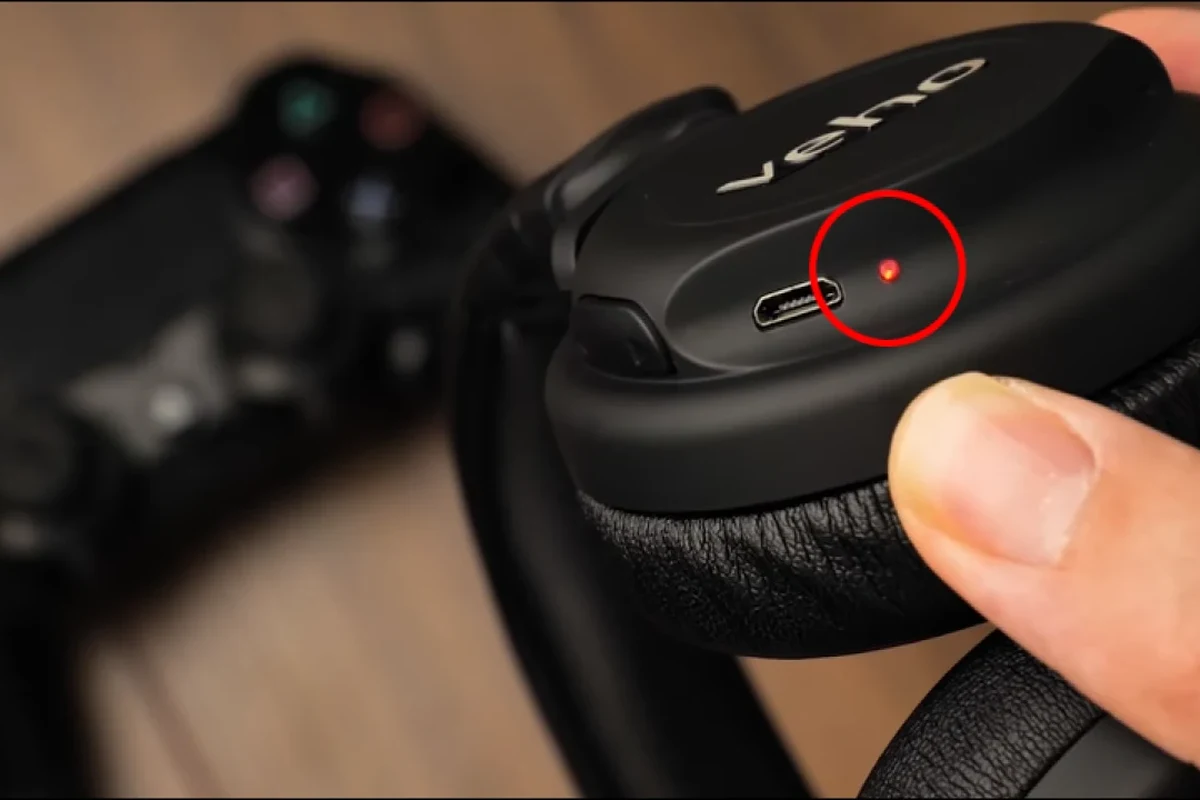
Image source: i0.wp.com
For most players, the controller jack is the fastest and least frustrating way to connect headphones to PS4. If your headset has a standard 3.5mm plug, this method usually takes less than a minute.
Step-by-step setup for 3.5mm wired headphones
1
Insert the 3.5mm headphone plug into the port on the bottom of the DualShock 4 controller.
2
Press and hold the PS button, then go to Sound/Devices or the relevant audio shortcut on your PS4.
3
Choose the controller-connected headset as your output device so the console sends audio through it.
4
Start a game or menu sound and confirm both left and right channels are working correctly.
This setup works well for most wired gaming headsets, earbuds with a mic, and even some basic phone-style headphones. If you use a headset with an inline microphone, the PS4 usually detects it automatically, though the mic level may still need adjustment.
Adjusting output settings for game audio and chat audio
After plugging in, you may need to decide whether you want all audio in your headphones or only chat audio. For single-player games, all audio is usually the better choice because it gives you full immersion.
For party chat, some players prefer chat-only audio so they can keep game sound on the TV. That can be useful in shared rooms, but it is less private and less focused than full headphone output.
The controller jack is the easiest PS4 headphone method for wired headsetsIt is simple, low-latency, and usually works without extra accessories
Real-world example: using a basic gaming headset with mic
A standard budget gaming headset with a single 3.5mm plug is often the simplest PS4 choice. You plug it into the controller, set the output to headphones, and use the built-in mic for party chat or in-game voice.
This is the kind of setup many casual players prefer because it avoids pairing issues, dongle confusion, and audio delay. If you want a basic, dependable setup, wired often wins on simplicity.
If your headset has a volume wheel or mute switch on the cable, set those first before changing PS4 menu settings. That makes troubleshooting much easier.
How to Connect Bluetooth Headphones to PS4 the Right Way
Bluetooth sounds convenient, but PS4 is not as open with Bluetooth audio as many people expect. In practice, you often need an adapter or a headset made specifically for console use.
Why most Bluetooth headphones do not connect directly
Many consumer Bluetooth headphones are designed for phones, laptops, and tablets—not for native PS4 audio. That means they may fail to pair, connect only for chat, or produce unstable sound.
This is one reason Bluetooth headphone advice can be confusing. If you are also trying to understand Bluetooth basics, our Bluetooth headphones explained simply guide breaks down the main connection types in plain language.
Using a Bluetooth USB adapter or dongle
A Bluetooth USB adapter or dongle is the most common workaround for wireless audio on PS4. You plug the adapter into the console, put your headphones into pairing mode, and then pair the two devices through the adapter rather than directly with the PS4.
Some adapters support full audio, while others only handle chat or have limited compatibility. Always check the adapter’s PS4 support before buying, because not every Bluetooth dongle works the same way.
Pairing process and latency considerations
Once the adapter is connected, pairing usually follows the same general pattern: put the adapter in pairing mode, put the headphones in pairing mode, and wait for them to link. After that, go into PS4 sound settings and confirm the output device.
Latency is the main tradeoff with Bluetooth. Even when the connection works, you may notice a small delay between the action on screen and the sound in your ears, especially in shooters, rhythm games, and fighting games.
Not every Bluetooth headset is guaranteed to work with PS4. Compatibility varies by headset, adapter, firmware, and game audio setup.
Expert warning: common Bluetooth issues and audio lag
Bluetooth can introduce crackling, dropouts, or desync if the adapter is poor quality or if the headset is not supported well. If your audio cuts out during gameplay, the problem is often compatibility rather than the headphones themselves.
If you want to reduce lag, look for a low-latency adapter and keep the headset close to the console. For more troubleshooting help, our Bluetooth headphone lag fix guide covers common delay problems and what usually causes them.
!
If you experience persistent lag, dropouts, or one-sided audio across multiple devices, consider checking with the headset maker or a professional audio specialist before buying another adapter.
Using USB Headsets and Wireless Dongles for Better Sound
USB headsets can be a better fit than Bluetooth if you want easier setup and more stable audio. Many gaming headsets use a USB dongle or direct USB connection to provide game sound and microphone support with less hassle.
Plug-and-play USB headset setup on PS4
In many cases, a USB headset is close to plug-and-play. Connect the headset or wireless dongle to the PS4, then go to the console audio settings and select the USB device as the output source.
This option is popular because it avoids the pairing problems of Bluetooth and often gives more consistent voice chat performance. It can also be easier to manage if your headset has dedicated buttons for volume, mute, or surround modes.
A wireless transmitter is worth considering if you want freedom of movement without relying on standard Bluetooth. These systems often use a dedicated USB transmitter, which can be more stable than generic Bluetooth in gaming use.
That extra cost may be worth it if you play long sessions, share a room, or want less cable clutter. The best choice depends on how much you value convenience versus plug-and-play reliability.
Comparing budget USB options vs. premium gaming headsets
Budget USB headsets can be a smart buy if you mainly want clear chat and decent game audio. Premium gaming headsets may offer better comfort, stronger build quality, and more tuning options, but the sound difference is not always dramatic for casual play.
If you are shopping for value, focus on microphone clarity, comfort, and compatibility first. Sound quality matters, but a comfortable headset that works reliably on PS4 is often the better long-term purchase.
Budget optionVaries
Premium optionVaries by brand
How to Change PS4 Audio Settings for Headphones
Even when your headphones are connected correctly, PS4 audio settings can still affect what you hear. A few quick menu changes can improve volume, chat balance, and microphone input.
Selecting output device and adjusting volume
Go to the PS4 sound settings and make sure the correct output device is selected. Then adjust the headphone volume so it is loud enough for gameplay but not so high that it becomes tiring.
If sound seems too quiet, check both the PS4 volume level and any in-line controls on the headset itself. Many connection issues are really just volume mismatches.
Switching between all audio and chat-only audio
PS4 lets you route all audio to your headphones or send only voice chat through them. All audio is usually best for solo gaming, while chat-only can work if you want the TV to handle the game sound.
For most people, full headphone output is the more practical setting because it gives better detail, better immersion, and easier control over what you hear.
Setting microphone input for party chat and online games
If your headset includes a microphone, set the input device to the headset or controller mic in the PS4 settings. Then test it in party chat or a game lobby to make sure your voice is being detected.
If other players say you sound too quiet or too loud, adjust the mic level rather than raising the headphone volume. That keeps your audio balance cleaner and easier to manage.
Audio menus can look slightly different depending on PS4 system software updates, but the basic output and input options stay similar.
Common Mistakes When Connecting Headphones to PS4
Most headphone connection problems on PS4 come from a few simple mistakes. The good news is that they are usually easy to fix once you know what to check.
Forgetting to update controller firmware or PS4 system software
Old software can cause pairing problems, sound glitches, or mic issues. If your headset is not working as expected, update the PS4 system and reconnect the controller before assuming the headphones are faulty.
Using incompatible Bluetooth headsets
Some Bluetooth headphones simply are not a good match for PS4. They may connect inconsistently, fail to carry game audio, or require a workaround that is not worth the trouble.
Misreading volume, mic, or output settings
Many users think the headset is broken when the real issue is a setting in the audio menu. Double-check whether the output is set to all audio or chat-only, and confirm that the mic input points to the correct device.
Overlooking headset compatibility with older PS4 models
Older PS4 setups may be less forgiving with certain wireless accessories. If you are using an older console, it is especially important to confirm headset and adapter compatibility before you buy.
Listening at high volumes for long periods can cause hearing damage. Keep volume at 60% or below for extended sessions.
Best Headphone Connection Options in 2026: Which One Should You Choose?
The best PS4 headphone connection in 2026 depends on your budget, play style, and tolerance for setup steps. There is no single winner for everyone, but there is a clear best choice for most use cases.
Best for budget gamers
Budget gamers usually get the best value from a wired 3.5mm headset through the DualShock 4 controller. It is inexpensive, reliable, and easy to replace if needed.
Best for competitive online play
For competitive play, wired or low-latency USB headsets are usually the safer bet. They reduce delay and make voice chat easier to trust during fast matches.
Best for convenience and wireless freedom
If you want the cleanest wireless experience, a USB wireless dongle or dedicated transmitter is often better than generic Bluetooth. It usually offers fewer pairing headaches and more predictable game audio.
Best value comparison by price and performance
For most readers, the value ranking is simple: wired controller connection first, USB headset or dongle second, Bluetooth adapter third. That order changes only if your comfort needs or room setup make wireless more important than simplicity.
| Model | Best For | Price Range |
|---|---|---|
| 3.5mm wired headset | Easy setup and low latency | Varies by brand |
| USB headset | Stable audio and chat | Varies by brand |
| Bluetooth with adapter | Wireless convenience | Varies by adapter and headset |
Final Recap: The Easiest Way to Connect Headphones to PS4
If you want the simplest answer, connect a wired headset to the DualShock 4 controller and set the PS4 audio output to headphones. That method is the easiest for most players and usually gives the most reliable results.
Quick summary of the best connection method by headphone type
Use wired 3.5mm headphones for the fastest setup, USB headsets for stable plug-and-play audio, and Bluetooth only if you have a compatible adapter or wireless system. Each option can work well, but the best one depends on your gear and how you play.
Key takeaways for better sound, chat, and comfort
Check compatibility first, keep your audio settings simple, and don’t assume every Bluetooth headset will work directly. If you choose a comfortable headset with clear mic performance and low delay, your PS4 gaming experience will usually improve right away.
- Wired 3.5mm headphones are the easiest PS4 connection.
- Bluetooth often needs a USB adapter to work properly.
- USB headsets can offer stable audio and chat support.
- Correct PS4 audio settings matter as much as the headset itself.
Frequently Asked Questions
Do wired or wireless headphones sound better on PS4?
Wired headphones usually give the most stable sound and the least delay on PS4. Wireless can be more convenient, but performance depends on the headset and adapter.
Why do some Bluetooth headphones not work directly with PS4?
PS4 has limited native Bluetooth audio support, so many standard Bluetooth headphones will not pair properly. In many cases, you need a USB dongle or a headset made for console use.
Should I choose open-back or closed-back headphones for PS4 gaming?
Closed-back headphones are usually better for PS4 gaming because they block more outside noise and keep sound from leaking out. Open-back models can sound wider, but they are less private and less isolating.
What headphone style is most comfortable for long gaming sessions?
Over-ear headphones are often the most comfortable for long sessions because they spread pressure around the ear. Cushion material, clamp force, and headset weight also matter a lot.
What should I check before buying headphones for PS4?
Check the connection type, mic support, comfort, and whether the headset works with your PS4 setup. If you want better value, compare build quality and compatibility before focusing only on sound features.
How can I improve headphone sound quality on PS4?
Start by adjusting PS4 output settings, then fine-tune volume and mic levels. If your headset supports EQ, small changes to bass and clarity can improve game audio without making it harsh.
Credit : Source Post