
The easiest way to use Bluetooth headphones with a PS5 is through a USB Bluetooth adapter, a TV with Bluetooth audio output, or a PS5-compatible wireless headset with a dongle. Direct pairing usually does not work well for most standard Bluetooth headphones.
If you’re trying to figure out how to hook up bluetooth headphones to ps5, the short version is this: most standard Bluetooth headphones won’t pair directly with a PS5. The easiest reliable options are a USB Bluetooth adapter, a TV or monitor with Bluetooth audio output, or a PS5-compatible wireless headset with its own dongle.
- Best workaround: Use a USB Bluetooth adapter or a gaming headset with a dongle.
- Lowest lag: Wired mode is the most reliable for PS5 audio.
- Watch for: Mic support, delay, and connection stability before buying.
- Most common issue: TV Bluetooth can add noticeable audio delay.
How to Hook Up Bluetooth Headphones to PS5 in 2025: What Works and What Doesn’t
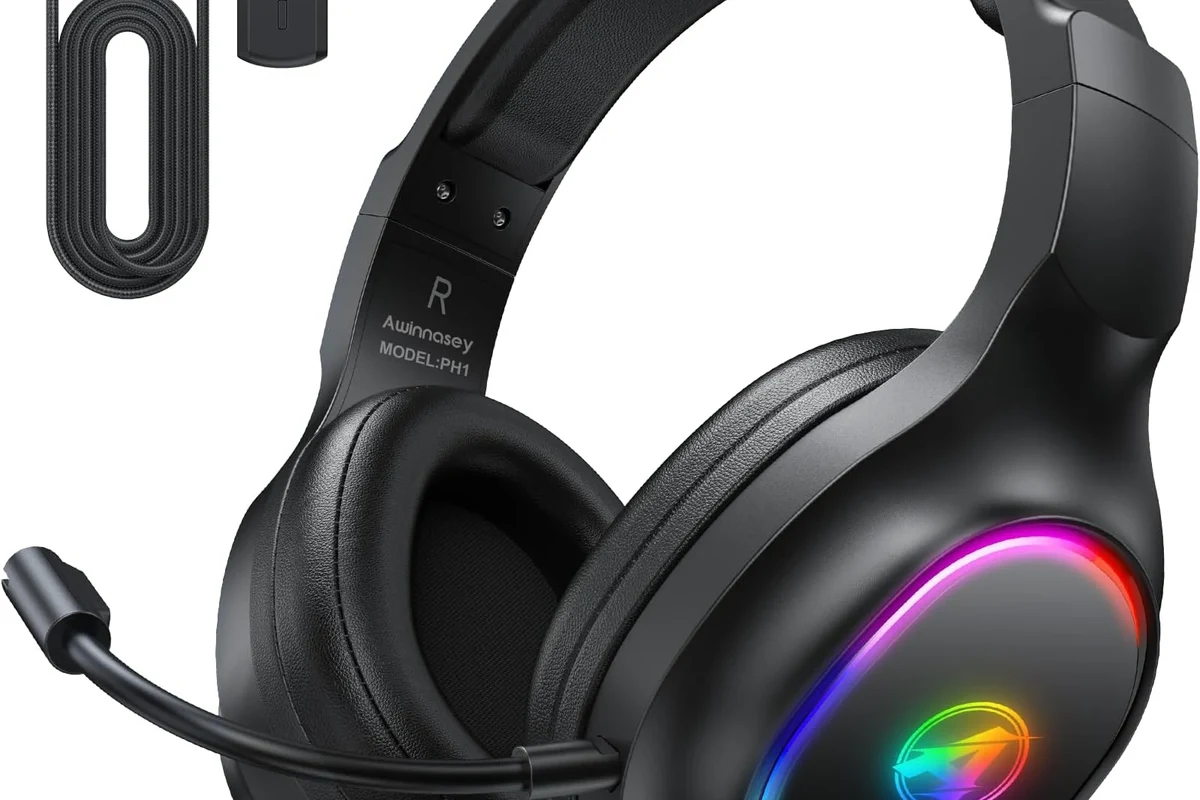
Image source: m.media-amazon.com
In 2025, the PS5 still isn’t as open as a phone or laptop when it comes to Bluetooth audio. That means the “pair and play” experience many people expect usually doesn’t happen with regular Bluetooth headphones.
Instead, most gamers need a workaround. The good news is that these workarounds are simple once you know which setup fits your TV, monitor, and headset.
Why the PS5 Doesn’t Support Standard Bluetooth Audio for Most Headphones
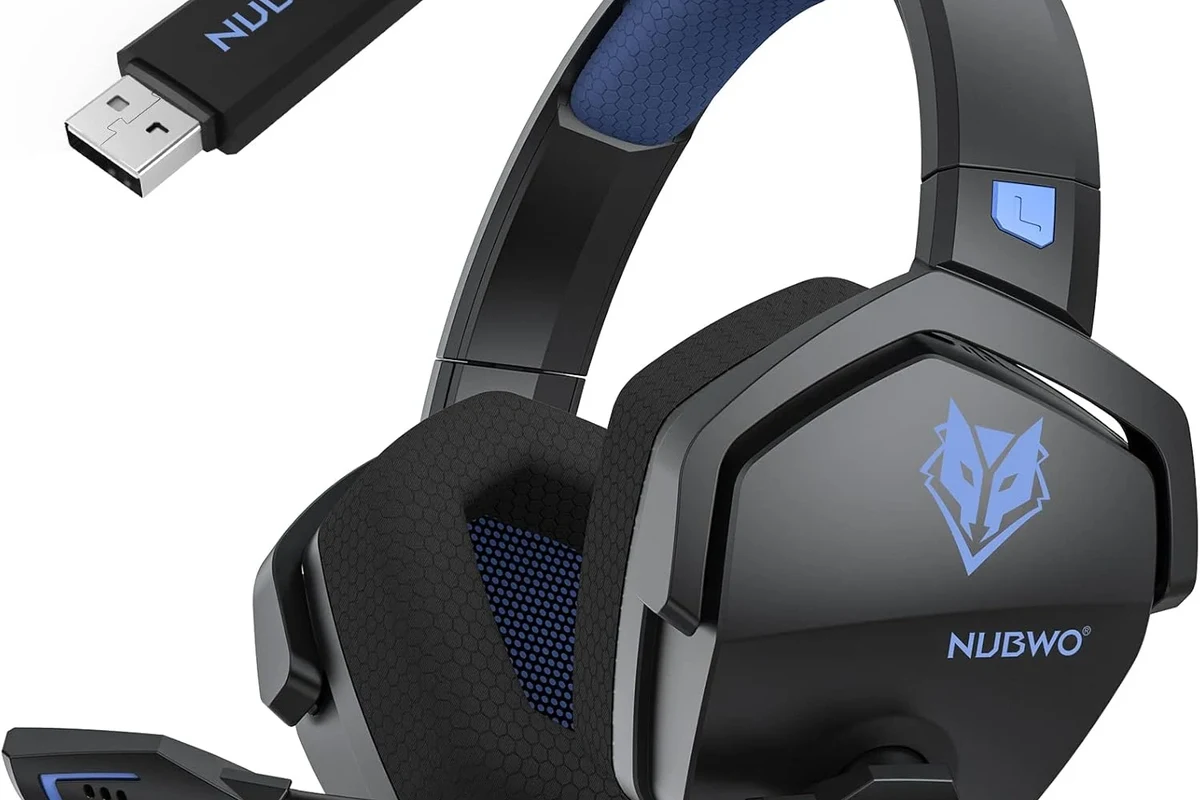
Image source: m.media-amazon.com
Sony limits direct Bluetooth audio on PS5 mainly because gaming audio needs to stay responsive. Even a small delay can make footsteps, gunfire, dialogue, and lip-sync feel off.
Bluetooth limitations, latency, and why Sony restricts direct pairing
Standard Bluetooth can add noticeable latency, especially with cheaper headphones or adapters. For gaming, that delay can be distracting, and in fast-paced titles it may affect timing and immersion.
Another issue is stability. A console has to handle controllers, accessories, and wireless signals at the same time, so Sony keeps Bluetooth audio support narrow to reduce connection problems.
Not every Bluetooth device behaves the same way. Audio delay, dropouts, and microphone support can vary by headset model, adapter quality, TV settings, and room interference.
What “compatible” really means for PS5 wireless audio
When people say a headset is “PS5 compatible,” they usually mean it works through a USB wireless dongle or another supported wireless method, not standard Bluetooth pairing. That distinction matters because many “wireless” headsets are not actually Bluetooth-only.
If you want fewer headaches, look for a headset or adapter that is specifically made for gaming use. If you want a broader overview of wireless audio basics, our guide on Bluetooth headphones explained can help clarify the difference between Bluetooth and other wireless setups.
Best Ways to Connect Bluetooth Headphones to PS5
There are three practical routes most gamers use. Each one has trade-offs, so the best choice depends on whether you care most about convenience, latency, microphone support, or price.
Using a USB Bluetooth audio adapter
This is the most common workaround for regular Bluetooth headphones. You plug the adapter into the PS5, put the adapter and headphones into pairing mode, and route audio through the dongle.
It’s simple, but the quality depends heavily on the adapter. Better adapters tend to be more stable, while very cheap ones can introduce lag, weak range, or connection drops.
Connecting through your TV or monitor’s Bluetooth output
If your TV or monitor supports Bluetooth audio, you may be able to connect your headphones there instead of directly to the console. The PS5 sends sound to the display, and the display sends it to your headphones.
This can be convenient, especially if your TV already has Bluetooth built in. The downside is that some TVs add extra delay, so this method is not always ideal for competitive gaming.
Using a PS5-compatible wireless headset with a USB dongle
This is usually the most reliable gaming-friendly choice. These headsets are designed to work with the PS5 through a dedicated USB transmitter, which often gives you lower latency than standard Bluetooth.
They also tend to handle chat audio and game audio more cleanly. If you want a smoother plug-and-play experience, this is often the best route for regular PS5 use.
If your main goal is gaming, prioritize low latency over “Bluetooth” labels. A headset with a USB dongle often sounds and feels better than a generic Bluetooth headset connection.
Step-by-Step: How to Hook Up Bluetooth Headphones to PS5 Easily
Below are the easiest setup methods, starting with the most common workaround. Follow the steps in order, and check your volume and audio output settings after pairing.
Method 1: Pairing via Bluetooth adapter
1
Insert the USB Bluetooth audio adapter into an open USB port on the PS5. If the adapter has a mode switch, set it to audio or headset mode before pairing.
2
Turn on pairing mode on your headphones and on the adapter. Wait for the indicator light or voice prompt that confirms the connection.
3
On the PS5, go to sound settings and make sure the adapter is selected as the output device. Then test game audio and adjust volume as needed.
Some adapters only carry audio and do not support microphone input. If you need party chat, check the adapter’s mic support before buying.
Method 2: Pairing through TV Bluetooth settings
1
Find the Bluetooth or sound output settings on your display. Not all monitors support this, so the option may be missing on some setups.
2
Put the headphones in pairing mode and select them from the TV’s Bluetooth list. Once connected, the TV should route audio to the headphones.
3
Play a game with dialogue or a cutscene to see whether the audio sync feels right. If the delay is too noticeable, switch to another method.
Method 3: Using wired fallback with Bluetooth headphones
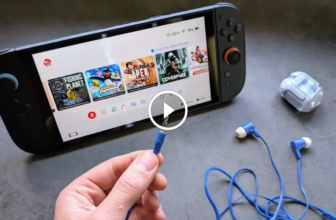
If your Bluetooth headphones also include a 3.5mm cable, you can use them in wired mode. This bypasses Bluetooth delay entirely and is often the simplest backup plan.
Wired mode can be especially useful for single-player games or when your battery is low. It also avoids many pairing issues that can happen with adapters and display-based Bluetooth.
i
Many wireless gaming headsets use a USB dongle instead of standard Bluetooth because it can deliver lower lag and more stable audio for consoles.
Common Problems Gamers Run Into and How to Fix Them
Even when the connection works, it may not work perfectly the first time. Most issues come down to latency, output settings, microphone limitations, or weak wireless hardware.
Audio delay and lip-sync issues
If voices and on-screen action do not match, the connection is probably adding too much lag. This is common with TV Bluetooth and budget adapters.
Try a different USB port, move closer to the adapter, or switch to wired mode. If the delay remains distracting, the setup may not be suitable for gaming.
No sound after pairing
If the headphones connect but stay silent, check the PS5 audio output menu first. The console may still be sending sound to the TV speakers or another device.
Also confirm that the adapter is fully powered and that the headphones are not connected to another device nearby, such as a phone or tablet.
Microphone not working in party chat
This is one of the most common surprises. Many Bluetooth headphone setups only handle playback, not microphone input, especially when using generic adapters.
If chat matters to you, choose a headset or adapter that explicitly supports voice input. Otherwise, you may need the DualSense controller mic or a dedicated gaming headset.
Headphones disconnecting or pairing inconsistently
Dropouts often happen because of distance, interference, or low-quality adapters. Other wireless devices, walls, and even USB port placement can affect the signal.
Re-pair the devices, keep the adapter in a front USB port if possible, and avoid stacking multiple wireless accessories too close together. If the issue continues, a higher-quality dongle may be worth it.
What to Look for in a Bluetooth Adapter or Headphone Setup
Not every adapter or headset is built for console use. A little planning before you buy can save you from lag, weak chat support, or constant reconnecting.
Low-latency codecs and why they matter for gaming
Low-latency support can help reduce the gap between what you see and what you hear. That matters a lot in games with quick action, rhythm timing, or dialogue-heavy scenes.
Codec support can vary by adapter and headphone model, so don’t assume every Bluetooth product will perform the same way. If gaming is your priority, low-latency performance should matter more than flashy feature lists.
USB-A vs USB-C adapters for PS5
The PS5 includes USB-A ports and a USB-C port, so either style may work depending on the adapter. The key is compatibility, not just connector shape.
USB-C can be convenient if you want a cleaner setup, but many reliable dongles still use USB-A. If you need help comparing audio connection types, our article on Bluetooth vs wired headphones sound quality is a useful next read.
Mic support, range, and battery life considerations
For gaming, a good headset is more than sound quality. You also want a microphone that works clearly, a stable range from the console, and enough battery life for long sessions.
If you play for hours at a time, comfort matters too. Ear cushion material, clamping force, and headset weight can make a big difference during long nights of play.
Listening at high volumes for long periods can cause hearing damage. Keep volume at 60% or below for extended sessions.
Cost Breakdown: Cheapest vs Best Overall Options for PS5 Wireless Audio
Prices and performance can vary a lot by brand and model, so think in terms of setup style rather than exact dollar amounts. The cheapest option is not always the best value if it creates lag or poor chat quality.
Budget Bluetooth adapter setup
This is usually the lowest-cost way to try your existing Bluetooth headphones on PS5. It can be fine for casual play, but it may not be the most reliable choice for competitive games.
If you go this route, read reviews carefully and look for reports about latency, pairing stability, and microphone support.
Mid-range wireless gaming headset options
Mid-range gaming headsets often offer the best balance of comfort, sound, and convenience. Many use a USB dongle rather than standard Bluetooth, which is a big plus for console use.
They are often easier to live with than a generic adapter setup because they are designed around gaming audio from the start.
Premium low-latency solutions for serious gamers
Premium options can provide better build quality, stronger battery life, and more refined audio tuning. They may also include better chat handling and more stable wireless performance.
For serious players, the extra cost often goes toward consistency and comfort rather than dramatic sound changes. If you want a broader buying perspective, our guide on how noise cancelling headphones work can also help you understand which features actually matter.
Budget optionVaries
Premium optionVaries by brand
Expert Advice: Mistakes to Avoid Before Buying or Pairing Bluetooth Headphones with PS5
The biggest mistakes are usually simple ones: buying the wrong kind of Bluetooth device, expecting perfect mic support, or assuming every wireless headset works the same way.
Why cheap adapters often cause lag and dropouts
Very cheap adapters may work at first, but they can struggle with range, interference, and stable audio transmission. That can lead to random pauses, hiss, or annoying sync delay.
If gaming audio matters to you, spending a little more on a reputable adapter is usually safer than replacing a bargain unit later.
Why not all “Bluetooth” headsets are PS5-friendly
Some Bluetooth headsets are built mainly for phones and calls, not console gaming. They may connect poorly, sound fine for music but feel delayed in games, or fail to support chat the way you expect.
Always check whether the headset works through standard Bluetooth, a USB dongle, or a wired backup option before you buy.
When to choose a dedicated gaming headset instead
If you play multiplayer often, use party chat, or care about low-latency audio, a dedicated gaming headset is usually the easier choice. It removes a lot of guesswork.
If you mostly play solo and already own good Bluetooth headphones, an adapter or wired fallback may be enough. For readers comparing headphone styles, our guide to types of headphones explained is a helpful reference.
Final Recap: The Easiest and Most Reliable Way to Use Bluetooth Headphones on PS5
The easiest way to hook up Bluetooth headphones to PS5 is usually not direct Bluetooth pairing, because the console does not fully support standard Bluetooth audio for most headsets. Instead, use a USB Bluetooth adapter, your TV’s Bluetooth output, or a PS5-compatible wireless headset with a dongle.
If you want the most reliable everyday experience, a gaming headset with a USB transmitter is usually the best balance of sound quality, stability, and low lag. If you only need a simple workaround, a decent adapter or wired fallback can still get the job done.
Frequently Asked Questions
Can I use any Bluetooth headphones with a PS5?
Not usually. Most standard Bluetooth headphones do not pair directly with a PS5, so you often need a USB adapter, TV Bluetooth, or a PS5-compatible wireless headset.
What is the best way to reduce Bluetooth lag on PS5?
Use a low-latency USB adapter or a gaming headset with a USB dongle. Wired mode is the most reliable option if you want to avoid delay completely.
Do Bluetooth headphones work better wired or wireless for PS5?
Wired usually works better for PS5 if your headphones support a cable. It removes most latency and avoids many pairing problems.
Are over-ear headphones better than in-ear for PS5 gaming?
It depends on comfort and sound preference. Over-ear models often give better long-session comfort and isolation, while in-ear options can be lighter and more portable.
What specs should I check before buying PS5 headphones?
Check latency, microphone support, battery life, comfort, and whether the headset uses Bluetooth or a USB dongle. Sound tuning and fit also matter for gaming.
How do I keep headphones comfortable during long gaming sessions?
Look for lighter builds, soft ear cushions, and a fit that does not clamp too hard. If you feel pressure or discomfort, take breaks and adjust the headset position.
Credit : Source Post