

Use the DualSense 3.5mm jack for the simplest wired setup, or a USB wireless dongle for the best low-latency wireless experience. Standard Bluetooth headphones may need an adapter and can add delay, so check PS5 audio settings after connecting.
If you’re trying to figure out how to connect PlayStation headphones to PS5, the good news is that most setups are simple once you know which connection type your headset uses. In 2025, the main options are wired 3.5mm, USB wireless dongles, USB-C adapters, and a few supported official PlayStation headsets.
The tricky part is that not every Bluetooth headset works the same way on PS5. Some connect instantly, some need an adapter, and some are better used through the DualSense controller or a USB transmitter for lower lag and better voice chat.
- Fastest method: Plug wired headphones into the DualSense controller.
- Best wireless option: Use a PS5-compatible USB dongle headset.
- Main limitation: Standard Bluetooth may need an adapter and can lag.
- Settings matter: Confirm output device, mic input, and chat balance.
- Safety first: Keep volume moderate during long gaming sessions.
How to Connect PlayStation Headphones to PS5: What Works in 2025
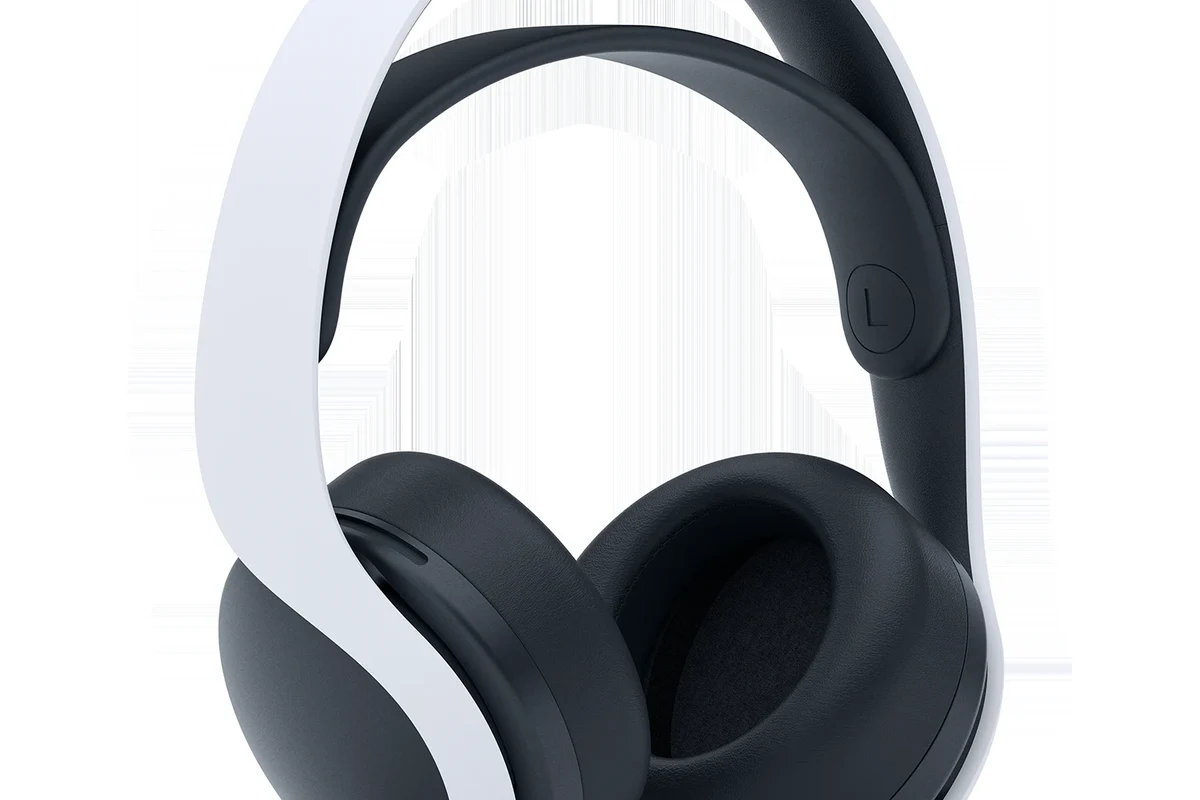
Image source: store.sony.co.nz
PS5 is fairly flexible, but it is not a universal Bluetooth audio machine. The system supports several headphone connection methods, yet the best choice depends on whether you want the simplest setup, the lowest latency, or the best microphone performance.
For most gamers, the easiest path is still wired through the DualSense controller or wireless through a compatible USB dongle. If you already own a headset from Sony or a gaming brand made for consoles, there’s a good chance it will work with minimal setup.
Compatibility can vary by headset model, firmware version, and whether the headset uses Bluetooth, 2.4GHz wireless, or a standard analog cable.
PS5 Audio Compatibility: USB, 3.5mm, Bluetooth, and Wireless Dongles Explained
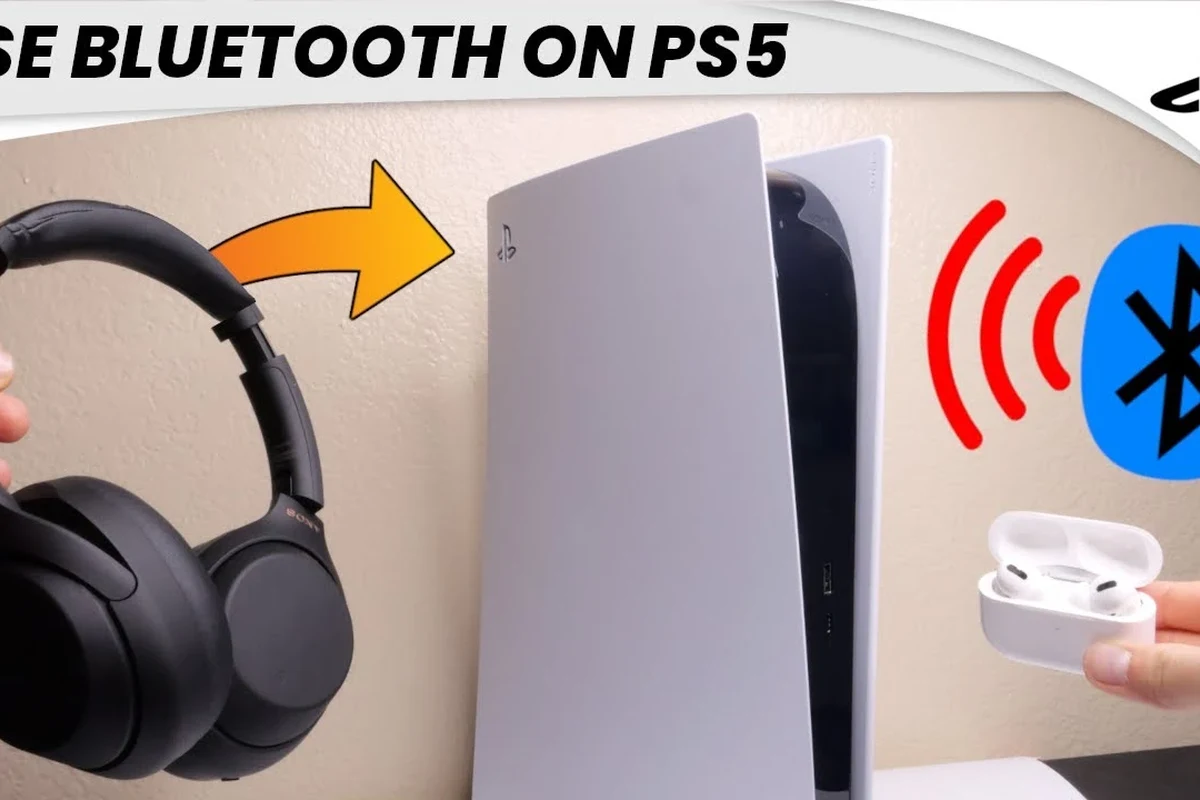
Image source: i.ytimg.com
Before buying anything extra, it helps to understand the four main ways PS5 handles headphone audio. Each one has different strengths for sound quality, convenience, and chat performance.
USB headsets usually work through plug-and-play support, while 3.5mm wired headphones use the controller’s audio jack. Bluetooth is where things get more limited, because PS5 does not offer broad native support for every Bluetooth headset.
Which PlayStation Headphones Are Supported Natively?
Official Sony models like the Pulse line and many gaming headsets designed for PS5 often connect natively through USB wireless dongles or compatible wireless modes. These are usually the easiest to set up because the console recognizes them without much troubleshooting.
If your headset is labeled for PlayStation use, look for instructions that mention PS5, USB wireless, or a dongle included in the box. That usually means the headset is designed for low-latency gaming audio and voice chat right out of the gate.
i
Many gaming headsets that say “wireless” are not Bluetooth at all. They often use a dedicated 2.4GHz USB connection, which is usually better for gaming latency.
Why Some Bluetooth Headphones Need an Adapter
PS5 does not support every standard Bluetooth headphone directly for game audio. That means a pair of everyday wireless headphones may connect to the console in limited ways, or not at all, unless you use a Bluetooth adapter.
An adapter can solve compatibility issues, but it may also add delay, reduce mic quality, or create pairing headaches. If you want a smoother gaming setup, a headset made for console wireless use is usually the cleaner option, especially if you care about chat and fast response in competitive games.
Bluetooth adapters can vary widely in quality. Some work well for casual listening, while others introduce audio delay or unstable microphone performance.
Step-by-Step Setup for Wired, USB, and Wireless PlayStation Headphones
Once you know your connection type, setup is usually fast. The key is to plug in the right device first, then switch the PS5 audio output to match the headset.
If you’re using a mix of accessories, keep the setup simple at first. Connect one audio device, confirm it works, and only then add extras like a splitter, adapter, or USB hub if needed.
Connecting via DualSense 3.5mm Jack
This is the easiest wired method. Plug your headphones into the 3.5mm jack on the bottom of the DualSense controller, then go to PS5 sound settings and make sure the output is set to the controller or headset.
This method works well for simple gaming headphones, wired earbuds, and many over-ear headsets with a removable cable. It also avoids battery concerns, though the cable length and controller battery life are the main trade-offs.
1
Insert the 3.5mm plug fully into the DualSense controller.
2
Set the output device to the controller headset connection.
3
Play a game or voice chat to confirm both sound and microphone input.
Using a USB Wireless Transmitter or USB-C Adapter
A USB wireless transmitter is one of the best ways to connect PlayStation headphones to PS5 if your headset includes one. You simply insert the dongle into a USB port, turn on the headset, and let the two devices pair automatically.
USB-C adapters can be useful too, especially for newer accessories or compact setups, but compatibility still depends on the headset and adapter combination. If the headset came with a dongle, use that first before trying third-party add-ons.
Best gaming wireless setups usually rely on USB dongles, not standard Bluetooth.That often means less lag and more stable voice chat.
Pairing Official PlayStation Headsets and Pulse Models
Official PlayStation headsets typically follow the simplest process: charge the headset, plug in the USB wireless adapter if included, and power both devices on. In many cases, the PS5 will detect the headset automatically.
If you own a Pulse model or another Sony-branded gaming headset, check the included guide for pairing mode instructions. Some models use a button combination, while others connect as soon as the transmitter is inserted.
If the headset connects but sounds too quiet, raise both the headset volume and the PS5 output volume before changing anything else.
Best PS5 Audio Settings for Headphones After Connection
Getting connected is only half the job. The right PS5 settings can improve clarity, balance game and chat audio, and make sure your microphone is actually active.
These settings are especially important if you switch between headphones, earbuds, and speakers. A small settings mismatch is one of the most common reasons people think their headset is broken when it is actually just routed incorrectly.
Output Device, Mic Input, and Volume Balance
After connecting, open the PS5 sound menu and confirm the output device is set to your headphones or controller headset. Then check the microphone input so the console knows which mic to use for party chat and in-game voice.
If game audio is too loud compared with chat, adjust the balance in the quick sound controls. This is one of the fastest ways to make dialogue clearer without changing the headset itself.
- Output device set correctly
- Microphone input detected
- Volume balanced for game and chat
- Mute status on headset and controller
3D Audio and Tempest Engine Settings
PS5’s 3D audio can be a strong feature for supported headphones, especially in games with directional sound cues. It may help footsteps, effects, and positional details feel more precise.
Still, 3D audio is a preference setting, not a universal upgrade. Some players like the extra depth, while others prefer a more natural stereo presentation, so test both before settling on one.
Sound quality can change depending on headphone design, ear cup seal, driver tuning, and the game itself.
Common Connection Problems and Mistakes to Avoid
If your headphones are not working, the issue is often small: a loose cable, the wrong audio output, a dead dongle, or a headset that is not actually supported the way you expected.
Before assuming the headset is defective, check the basics. A few minutes of troubleshooting can save you from buying a replacement you do not need.
Headphones Not Detected on PS5
Start by unplugging and reconnecting the headset or dongle, then restart the console. If the headset still is not detected, try another USB port or test the headset on another device to confirm it is working.
For wired headphones, make sure the cable is fully seated in the DualSense jack and not loose at the connector. Some plugs look inserted when they are not pushed in all the way.
Low-cost adapters and damaged cables are common causes of detection problems. If a connection feels unstable, the accessory may be the issue rather than the PS5.
Audio Only in One Ear, No Mic, or Lag Issues
One-ear audio usually points to a partially inserted plug, a cable fault, or a headset balance issue. No microphone often means the PS5 is reading the wrong input device or the headset mic is muted on the ear cup or inline control.
Lag can happen with wireless devices, especially if they rely on Bluetooth instead of a gaming-focused USB transmitter. If you notice delay in fast-paced games, try a wired connection or a dedicated low-latency wireless headset.
!
If you experience repeated crackling, dropouts, or sudden volume jumps, consider contacting the headset maker or a professional audio specialist before assuming the PS5 is at fault.
Bluetooth Delay and Unsupported Codec Issues
Bluetooth headphones can sound fine for music but feel off for gaming because of latency. PS5 does not guarantee support for every codec or every wireless implementation, so lip-sync and gameplay timing may suffer.
If your headset is mainly for gaming, a USB wireless dongle or wired cable is usually the safer choice. For more on wireless behavior in general, see our guide to connect Bluetooth headphones and how pairing can differ by device.
i
Some Bluetooth headphones may connect for chat or menus but still struggle with real-time game audio, which is why they can feel “connected” but not truly PS5-ready.
When to Use an Adapter, Splitter, or New Headset: Price and Value Comparison
The best value choice depends on what you already own. If your current headphones are comfortable and sound good, a small adapter may be enough. If not, replacing the headset may be the smarter long-term move.
Think about cost, latency, mic quality, and how often you play. A cheap fix is not always a good deal if it creates connection headaches every week.
Budget Fixes vs. Premium Wireless Options
A budget adapter can be fine for casual use, but performance may vary a lot. Some work well for single-player gaming and streaming, while others add delay or reduce voice clarity.
Premium wireless gaming headsets usually cost more because they include a dedicated transmitter, better tuning for gaming, and more reliable chat support. If you play often, that extra stability can be worth it.
Budget optionVaries
Premium optionVaries by brand
What to Buy for the Best PS5 Experience in 2025
If you want the easiest PS5 experience, choose a headset designed for console gaming with a USB wireless dongle or a reliable 3.5mm cable. That gives you the best mix of compatibility, low lag, and easy voice chat.
If you already own quality headphones, check whether they support wired use or a PS5-friendly adapter before replacing them. For readers comparing headphone types more broadly, our types of headphones explained guide can help you decide whether over-ear, on-ear, or in-ear makes the most sense.
| Connection Type | Best For | Typical Value |
|---|---|---|
| 3.5mm wired | Simple plug-and-play use | Best budget value |
| USB wireless dongle | Low-latency gaming | Best overall convenience |
| Bluetooth adapter | Using existing wireless headphones | Mixed results |
Expert Advice: Getting the Best Sound and Voice Chat Performance
Once your headset is working, a few small adjustments can make a big difference. Good audio is not just about volume; it is about balance, comfort, and clear communication during long sessions.
That matters whether you use a budget wired headset or a more premium wireless model. Even a good headset can sound worse than it should if the settings or firmware are ignored.
Mic Monitoring, Chat Mix, and Firmware Updates
Mic monitoring helps you hear your own voice so you do not talk too loudly in party chat. Chat mix lets you prioritize game audio or voice chat depending on the match, which is useful for team play.
Also check for firmware updates on both the headset and its USB transmitter, if it has one. Updates can improve stability, fix pairing issues, and sometimes improve microphone behavior.
If your headset sounds muddy, try a small EQ adjustment before replacing it. A little less bass and a little more midrange can improve speech clarity.
Warning Signs of Poor-Quality Accessories
Be cautious with very cheap adapters, no-name splitters, and wireless transmitters that promise universal support. They may work at first but often become unreliable during longer sessions.
Look for accessories with clear PS5 compatibility, stable reviews, and simple return policies. If the product description is vague about latency or mic support, that is usually a warning sign.
Listening at high volumes for long periods can cause hearing damage. Keep volume at 60% or below for extended sessions.
Final Recap: The Fastest Way to Connect PlayStation Headphones to PS5
The fastest way to connect PlayStation headphones to PS5 is usually a 3.5mm cable through the DualSense controller or a compatible USB wireless dongle. Those two methods are the most reliable for most gamers and usually give better results than random Bluetooth pairing.
If you already own a headset, check whether it is designed for console wireless use before buying an adapter. For the smoothest experience, choose a headset with native PS5 support, then fine-tune the audio settings for your game, chat, and comfort preferences.
- Use 3.5mm for the easiest wired setup.
- Use USB dongles for the best low-latency wireless option.
- Bluetooth may need an adapter and can add delay.
- Check PS5 audio settings after every connection.
Frequently Asked Questions
Do wireless headphones work better than wired headphones on PS5?
Wireless headsets with a USB dongle usually work better for gaming than standard Bluetooth. Wired headphones still win for simplicity, zero battery concerns, and very consistent audio.
What should I check if my PS5 headset sounds too bass-heavy or muddy?
Try lowering bass in the headset EQ or PS5 audio settings if available. Also make sure the ear cushions seal well, since fit can change how much bass you hear.
Are open-back headphones good for PS5 gaming?
Open-back headphones can sound spacious and natural, which some players like for immersion. They leak sound and block less outside noise, so they are usually better for quiet rooms than shared spaces.
Should I buy over-ear, on-ear, or in-ear headphones for PS5?
Over-ear headsets are usually the most comfortable for long gaming sessions and often offer the best isolation. In-ear options can be lighter and more portable, but comfort and soundstage depend heavily on the fit.
What specs matter most when buying headphones for gaming and voice chat?
Look for low-latency wireless support, a clear microphone, comfortable ear cushions, and a connection type that works with PS5. Driver tuning, weight, and build quality also matter for long sessions.
How can I keep my headphones comfortable during long PS5 sessions?
Choose a lightweight headset with soft padding and a secure but not tight clamp. Take breaks, keep volume reasonable, and switch ear pads if the material gets hot or worn.
Credit : Source Post