
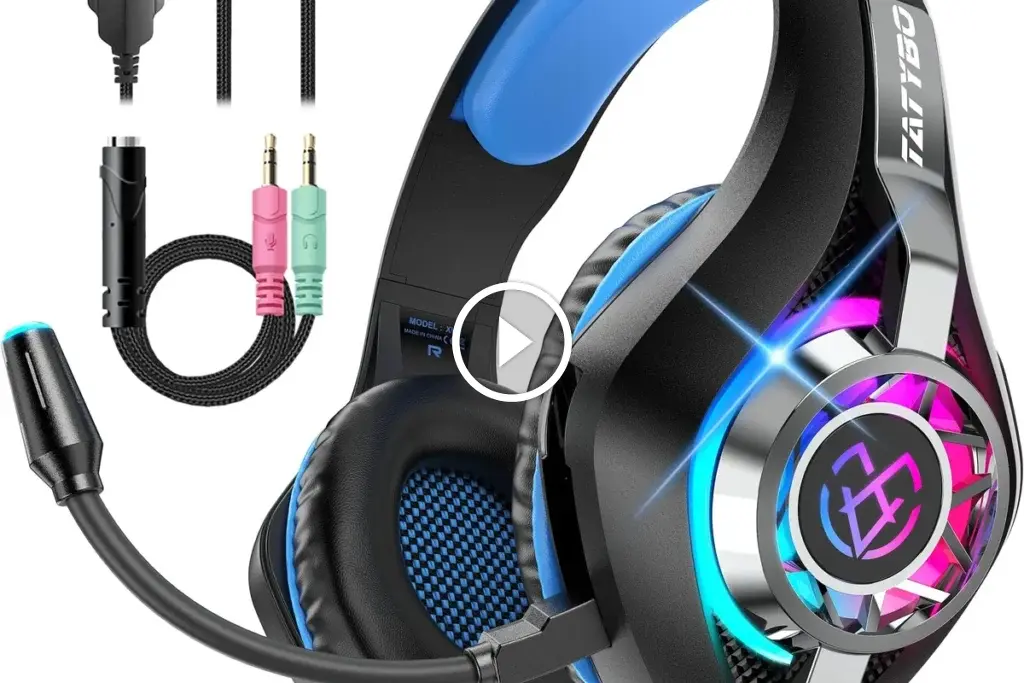
The easiest way to hook up headphones to TV is usually Bluetooth on a smart TV or a direct wired connection through the headphone jack. If your TV does not support either, use the correct adapter or a wireless transmitter that matches your TV’s audio output.
If you want to know how to hook up headphones to TV, the easiest method depends on your TV’s audio outputs and whether you want wired or wireless listening. In most cases, you can connect through Bluetooth, a headphone jack, an adapter, or a dedicated wireless TV headphone system.
- Fastest setup: Bluetooth or a direct 3.5mm jack connection.
- Best for gaming: Wired or low-latency wireless gear.
- Older TVs: RCA adapters or transmitter kits often work best.
- Common issue: Audio delay is the main problem with wireless TV listening.
How to Hook Up Headphones to TV: What You Need to Know First
Image source: m.media-amazon.com
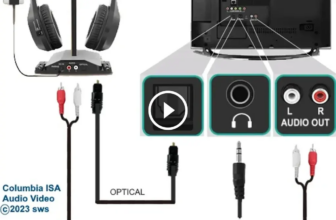
Before you buy anything, check the back and side panels of your TV for available audio outputs. The most common options are Bluetooth, a 3.5mm headphone jack, RCA audio out, optical audio out, or HDMI ARC/eARC.
Your headphone type matters too. Wireless headphones are convenient, but some TV and headphone combinations can add delay, which is more noticeable in gaming and dialogue-heavy movies.
If you already use Bluetooth headphones, it may be worth reading our guide on how to connect Bluetooth headphones for a quick refresher on pairing basics. For readers comparing headset styles, our guide to types of headphones explained can also help you choose a better fit for TV use.
TV audio menus vary by brand, so the exact labels may differ. Look for settings like Sound Output, Speakers, Audio Device, or External Speaker.
Best Ways to Connect Headphones to a TV in 2025
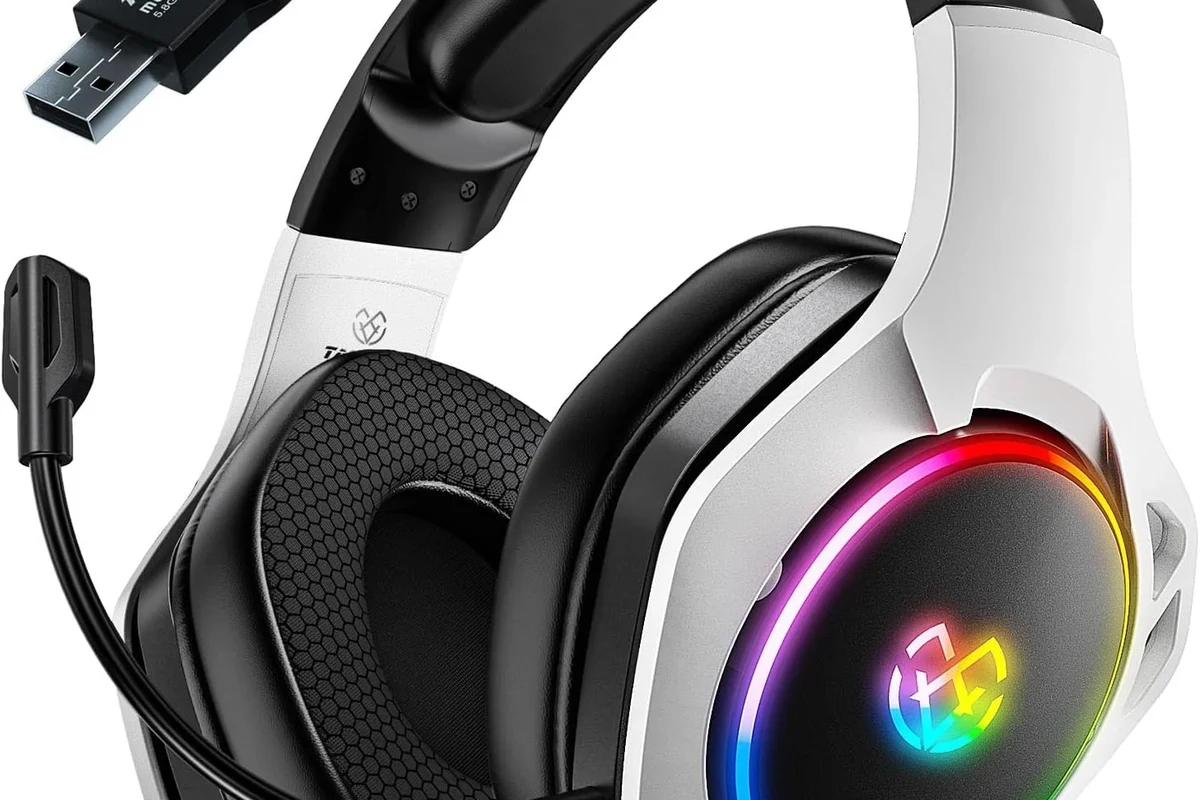
Image source: m.media-amazon.com
There is no single best method for every setup. The right choice depends on your TV model, your headphones, and whether you care most about convenience, sound quality, or low latency.
Bluetooth TV connection for wireless listening
Bluetooth is the cleanest and simplest option when your TV supports it. You pair your headphones directly in the TV’s audio settings and listen without cables.
This is ideal for casual viewing, late-night TV, and people who want to move around while listening. The main downside is that some TVs introduce a small delay, which can cause lip-sync issues.
Using a 3.5mm headphone jack or RCA adapter
If your TV has a headphone jack, a wired connection is usually the fastest setup. Just plug in your headphones and adjust the TV volume as needed.
Older TVs may only have RCA audio outputs, which means you may need an RCA-to-3.5mm adapter or a small DAC depending on the setup. Wired connections usually offer stable audio and very little delay.
Optical audio and HDMI ARC workarounds
Some modern TVs do not offer a headphone jack, but they do include optical audio or HDMI ARC/eARC. In that case, you can use an external converter, soundbar pass-through, or transmitter that supports those outputs.
This route is useful when you want better compatibility with newer TVs. It can also help if you need to send audio to headphones while keeping the TV speakers available in certain setups.
Dedicated wireless TV headphone systems
Dedicated RF or Bluetooth transmitter kits are often the best solution for viewers who want reliable wireless audio. These systems usually include a transmitter connected to the TV and a matching headset or receiver.
They are especially helpful in larger rooms because many offer stronger range than built-in Bluetooth. They can also be a smart choice if your TV has poor Bluetooth performance or no Bluetooth at all.
Step-by-Step Setup for Each Connection Method
Once you know which output your TV has, the actual setup is usually simple. The key is matching the right cable or transmitter to the right audio source.
Pairing Bluetooth headphones with smart TVs
1
Go to Sound or Audio Output in your TV settings and look for Bluetooth or Wireless Speaker options.
2
Follow your headphone manual so the TV can detect them. Some models need the power button held down until a light flashes.
3
Choose the headphones from the list and confirm the connection. Then test the volume and adjust audio delay settings if your TV includes them.
Connecting wired headphones with adapters and splitters
For a wired setup, connect the headphone plug directly to the TV if a jack is available. If not, use the correct adapter for RCA or optical output.
If you want to keep the TV speakers active, a splitter or audio extractor may help. This is useful in shared rooms, but the exact result depends on the TV’s audio routing and the adapter quality.
Not every adapter will work with every TV. Check whether your TV output is variable or fixed volume before buying, because that affects how your headphones will sound.
Setting up RF or Bluetooth transmitter kits
Start by connecting the transmitter to the TV’s audio output, usually via optical, RCA, or 3.5mm. Then power the transmitter and pair it with the included headphones or your compatible wireless headphones.
These kits are often easier than they sound because the transmitter handles the audio link for you. If you want a deeper look at wireless behavior and connection basics, our article on Bluetooth headphones explained is a helpful companion read.
If your TV supports both Bluetooth and a wired output, test both before settling on one. The better option is often the one with the least delay, not just the most convenient one.
Which Method Is Best for Your TV and Headphones?
The best connection method depends on your priorities. A smart TV owner, a retro TV user, and a gamer will usually want different solutions.
Best choice for smart TVs, older TVs, and gaming setups
For smart TVs, built-in Bluetooth is the easiest place to start. For older TVs, a wired jack or RCA adapter is often the most dependable option.
For gaming, low-latency wired audio or a dedicated low-delay transmitter is usually the safer choice. Games are more sensitive to audio lag than casual TV watching, especially in fast action titles.
i
Even a small audio delay can feel bigger when you watch mouths move on screen. That is why many people notice lag more during movies and gaming than during music playback.
Latency, sound quality, and range comparison
Wired connections usually win for stability and low latency. Bluetooth wins for convenience, but performance can vary depending on the TV, codec support, and headphone model.
RF systems often offer stronger range than standard Bluetooth, which can be useful in larger living rooms. Sound quality also varies by brand and model, so it is better to compare real-world comfort and delay than to focus only on marketing terms.
Cost breakdown: budget, mid-range, and premium options
Budget setups usually include a simple 3.5mm cable or basic RCA adapter. Mid-range options often involve a Bluetooth transmitter, DAC, or better wired adapter.
Premium setups may include dedicated wireless TV headphones, low-latency transmitters, or full home audio extractors. Prices vary widely by brand and features, so it is smart to match the product to your exact TV output instead of overspending.
Budget optionVaries
Premium optionVaries by brand
Common Mistakes When Hooking Up Headphones to a TV
A lot of headphone setup problems come from small oversights. Most of them are easy to avoid if you check the TV settings and compatibility first.
Ignoring audio output settings and volume control
Many TVs default to internal speakers even after headphones are connected. Others switch the output correctly but leave the headphone volume too low or too high.
Always check the sound menu and test the volume from both the TV and the headphones. If the TV has separate audio output controls, use them before assuming the connection is faulty.
Buying the wrong adapter or assuming every TV has Bluetooth
Not every TV has Bluetooth, and not every adapter solves every output type. Some TVs need an optical converter, while others need a simple jack adapter or transmitter.
Before you buy, confirm the exact audio ports on your TV. That one step can save you from returns, poor sound, and frustrating setup loops.
Overlooking lip-sync delay and incompatible codecs
Bluetooth delay is one of the biggest complaints in TV headphone setups. It becomes more obvious when the TV and headphones do not support the same low-latency codec or when the TV has weak Bluetooth processing.
If your TV has an audio delay adjustment, use it. If not, you may need a transmitter with better codec support or a wired connection instead.
Listening at high volumes for long periods can cause hearing damage. Keep volume at 60% or below for extended sessions.
Expert Advice: How to Avoid Audio Delay and Poor Sound
If your goal is smooth movie dialogue or responsive gaming audio, delay matters almost as much as sound quality. That is why the best setup is not always the most wireless one.
When to use low-latency Bluetooth or aptX Adaptive
Low-latency Bluetooth can help reduce lag, but it only works well when both the TV or transmitter and the headphones support the same feature. aptX Adaptive and similar codecs may improve performance, though results still vary by device.
For many people, this is a good middle ground between convenience and responsiveness. Just remember that codec support is not universal, so check compatibility before buying.
Why some TVs need external transmitters for stable performance
Some TVs have weak built-in Bluetooth or only support basic audio profiles. In those cases, an external transmitter can provide a more stable signal and better range.
This is especially helpful if your TV is older, mounted far from your seating area, or paired with headphones that disconnect easily. A good transmitter can solve problems the TV itself cannot.
!
If you notice persistent delay, crackling, or one-sided audio, stop troubleshooting at random and check the TV’s output format, headphone compatibility, and adapter type. If you have hearing concerns, tinnitus, or sensitivity to loud sound, follow safe listening guidelines or consult an audiologist.
Warning signs that your setup will not work well for gaming or movies
If dialogue does not match lip movement, your current setup may not be ideal for movies. If button presses and game sounds feel disconnected, latency is probably the problem.
Frequent dropouts, weak bass, or a hollow sound can also point to a poor adapter or a mismatch between the TV and headphones. In those cases, a wired option or a better transmitter is usually the cleaner fix.
Final Recap: The Fastest and Easiest Way to Hook Up Headphones to TV
If you want the fastest setup, use Bluetooth on a smart TV or plug wired headphones into the TV’s headphone jack. If your TV lacks those options, an RCA adapter, optical converter, or wireless transmitter can still get the job done.
For most viewers, the best choice is the one that balances convenience, sound quality, and low delay. If you are mainly watching movies, a simple wireless setup may be enough; if you are gaming, wired or low-latency gear is usually the safer pick.
- Bluetooth is easiest on smart TVs, but delay can vary.
- Wired connections are usually the most stable and responsive.
- Adapters and transmitters help older TVs and missing ports.
- Check TV output settings before buying new gear.
Frequently Asked Questions
Are wireless headphones or wired headphones better for TV?
Wired headphones are usually better for low delay and stable sound. Wireless headphones are more convenient, but performance depends on the TV and transmitter.
Do noise cancelling headphones work well with a TV?
Yes, noise cancelling headphones can work very well for TV viewing, especially in noisy homes. Just make sure the connection method is stable and comfortable for long sessions.
Should I choose open-back or closed-back headphones for TV?
Closed-back headphones are usually better for TV because they block more outside noise and reduce sound leakage. Open-back models can sound wider, but they are less private and less practical in shared rooms.
What headphone specs should I check for TV use?
Check connection type, latency support, comfort, battery life, and whether the TV has Bluetooth or a headphone jack. Sound quality specs like driver type and frequency response can help, but real-world compatibility matters more.
How can I improve bass and clarity on TV headphones?
Start with the TV’s audio settings and any headphone EQ options. If sound still feels weak, try a better fit, a wired connection, or headphones with stronger tuning for movies and dialogue.
What is the best headphone type for long TV sessions?
Lightweight over-ear or comfortable on-ear models are usually the easiest for long sessions. Look for soft ear cushions, moderate clamping force, and a build that does not feel heavy after an hour or two.
Credit : Source Post