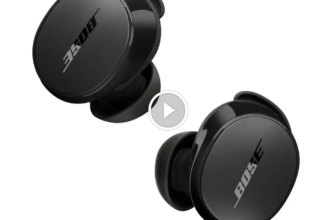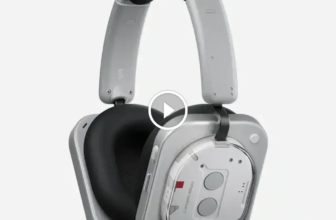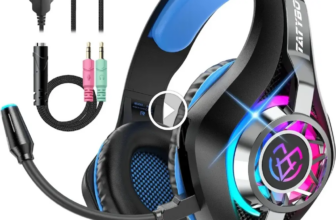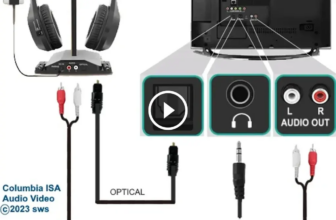

The PS5 does not support standard Bluetooth headphone pairing directly, so you usually need a USB adapter, TV passthrough, or Remote Play. For the fastest and most reliable setup, a low-latency adapter or a 2.4GHz wireless gaming headset is usually the better choice.
If you want to know how to bluetooth headphones to ps5, the short answer is that the PS5 does not support standard Bluetooth audio pairing directly. The easiest workaround is usually a USB Bluetooth adapter, while TV passthrough and Remote Play can also work depending on your setup.
- Direct pairing: PS5 usually blocks standard Bluetooth audio.
- Best workaround: Use a USB Bluetooth adapter or TV passthrough.
- Latency matters: Bluetooth delay can affect fast-paced games.
- Mic support: Many Bluetooth headphones won’t handle PS5 chat well.
Can You Connect Bluetooth Headphones to PS5 in 2025? What Sony Supports and What It Doesn’t
Image source: c8.alamy.com
In 2025, the PS5 still does not offer simple native Bluetooth audio support for most headphones. That means you usually cannot pair regular Bluetooth headphones to the console the same way you would with a phone or laptop.
Sony’s main concern is latency and stability. Bluetooth audio can introduce delay, and that delay is especially noticeable in games where footsteps, gunfire, and voice chat need to stay in sync.
The PS5 is designed to work best with licensed wireless headsets, USB dongles, or wired audio through the controller. If your goal is convenience, Bluetooth can still be part of the setup, but it is rarely the most seamless method.
Compatibility can vary by headphone model, adapter chipset, TV audio settings, and even your room layout. If a method works poorly at first, it may need a settings change rather than a new headset.
Best Ways to Use Bluetooth Headphones on PS5 Without Lag or Audio Cutouts
Image source: m.media-amazon.com
There are three practical ways to use Bluetooth headphones with a PS5. Each one has trade-offs, so the best choice depends on whether you care most about simplicity, sound quality, or low latency.
Using a USB Bluetooth adapter for direct console pairing
A USB Bluetooth adapter is usually the most direct workaround. You plug the adapter into the PS5, put your headphones in pairing mode, and connect through the adapter instead of the console’s built-in Bluetooth.
This method is popular because it keeps everything in one place. It can also be more reliable than TV passthrough if you choose an adapter made for low-latency audio.
If you hear delay, check whether your adapter supports a low-latency codec or gaming-focused mode. Not all Bluetooth adapters handle game audio equally well.
Pairing through your TV, monitor, or soundbar with Bluetooth passthrough
Some TVs, monitors, and soundbars can receive PS5 audio and then send it to Bluetooth headphones. This can be a simple option if your display already supports Bluetooth audio output.
The downside is that audio quality and delay depend heavily on the display’s internal processing. Some TVs handle it well, while others add enough lag to make gaming feel off.
If you already use a display with solid audio passthrough, this can be a convenient living-room solution. It is often better for casual play than fast-paced competitive games.
Connecting via the PS5 Remote Play app on phone, tablet, or PC
Remote Play is another workaround if you want to use Bluetooth headphones without touching the console audio path directly. You stream the PS5 to a phone, tablet, or PC, then connect your headphones to that device.
This is useful when you want flexibility, especially if you already use wireless headphones with your mobile device. It can also be a nice option for chat-focused play or single-player sessions.
Still, Remote Play adds another layer between you and the console. Performance depends on your network, device, and Bluetooth connection quality.
Step-by-Step: How to Bluetooth Headphones to PS5 Fast
If you want the fastest setup, start by deciding which connection method you are using. The steps below assume you are using a USB Bluetooth adapter, a Bluetooth-capable TV, or Remote Play.
Prepare your headphones and put them in pairing mode
Charge your headphones first so they do not disconnect during setup. Then put them into pairing mode using the manufacturer’s instructions, which usually involves holding the power or Bluetooth button for a few seconds.
If your headphones have a companion app, check whether there is a low-latency or game mode. That can help reduce delay, though results vary by model.
Set up the adapter or device you’re using with PS5
Plug the USB Bluetooth adapter into the PS5 or connect the PS5 to your TV/monitor as usual if you are using passthrough. If you are using Remote Play, log in to the same PlayStation account on your phone, tablet, or PC.
Once the adapter or device is ready, search for your headphones and complete pairing. If the connection fails, restart both devices and try again near the console or display.
1
Hold the Bluetooth button until the indicator light flashes, then wait for the headphones to appear on your adapter or device.
2
Pair through the USB adapter, TV audio menu, or Remote Play device depending on your setup.
3
Launch a game, check volume, and confirm whether microphone or party chat functions as expected.
Switch PS5 audio output and confirm mic/chat behavior
After pairing, go into the PS5 sound settings and choose the correct output device if needed. In some setups, the console may still send audio to the TV or controller until you manually switch it.
Also test voice chat separately. Many Bluetooth headphone setups handle audio playback but not microphone input in the way PS5 users expect.
If you need a deeper overview of wireless audio basics, our guide on Bluetooth headphones explained simply can help you understand why some connections behave better than others.
Best Bluetooth Headphones and Adapters for PS5: What to Look For
Not every Bluetooth headphone or adapter is equally good for gaming. The best choices usually balance low latency, comfort, stable wireless performance, and battery life.
Low-latency codecs, battery life, and dual-device support
If you want smoother gameplay, look for low-latency support where available. Codec support may vary by adapter, headphones, and source device, so it is worth checking the product details before buying.
Battery life matters too, especially if you play long sessions or leave the headset on for TV use as well. Dual-device support can be helpful if you want to switch between PS5 and phone without re-pairing every time.
For PS5 gaming, connection stability matters more than flashy audio featuresA clean, low-delay link usually beats extra extras you may never use
Price comparison: budget adapters vs premium wireless solutions
Budget Bluetooth adapters can be a good starting point if you only want basic wireless audio. Premium wireless solutions may cost more, but they often offer better reliability, lower lag, or a cleaner overall gaming experience.
Prices vary by brand and region, so it is better to compare features than chase a specific number. If you want a general idea of where costs can land, see the estimate below.
Budget optionVaries
Premium optionVaries by brand
Common Problems When Connecting Bluetooth Headphones to PS5
Even when Bluetooth works, it can be inconsistent. The most common complaints are delay, pairing failures, random dropouts, and microphone limitations.
Why audio delay happens and how to reduce it
Bluetooth audio delay happens because the signal has to be encoded, transmitted, and decoded before you hear it. That process takes time, and some setups add more delay than others.
You can often reduce lag by using a low-latency adapter, moving closer to the source, and avoiding crowded wireless environments. Turning off other nearby Bluetooth devices may also help.
i
Even a small amount of audio delay can feel much bigger in games than it does when watching videos or listening to music.
Why some headphones won’t pair or keep disconnecting
Pairing issues often come from incompatible Bluetooth profiles, old firmware, or a weak adapter. Some headphones are simply better at connecting to phones than to gaming setups.
If your headphones keep disconnecting, try resetting them, re-pairing from scratch, and checking whether another device is stealing the connection. Our guide on how to reset Bluetooth headphones may help if the headset seems stuck.
Why the PS5 microphone may not work over Bluetooth
Microphone support is one of the biggest limitations. Many Bluetooth headphones can play audio fine but do not pass mic input to the PS5 in a clean, reliable way.
That is why some players use a separate mic, the controller mic, or a headset designed specifically for console chat. If voice chat matters to you, check microphone compatibility before buying.
Do not assume every Bluetooth headphone will support PS5 voice chat. Audio playback and microphone support are often separate features, and one can work without the other.
Expert Advice: When Bluetooth Is the Wrong Choice for PS5 Gaming
Bluetooth is convenient, but convenience is not always the same as best performance. Some games and play styles are simply too sensitive to latency for Bluetooth to be the ideal choice.
Competitive gaming, voice chat, and latency-sensitive titles
If you play shooters, rhythm games, or anything where timing matters, even a little delay can be distracting. Voice chat can also feel less natural if your audio path adds extra lag.
In those cases, a wired headset or a purpose-built wireless gaming headset is usually a better fit. The connection tends to be more predictable, which is what most players want during competitive sessions.
When a 2.4GHz wireless headset is the better option
A 2.4GHz wireless headset often gives you the easiest mix of low delay and gaming-friendly stability. These headsets usually use a dedicated USB dongle instead of standard Bluetooth, which helps keep the connection focused on gameplay.
If you want to compare wireless styles more broadly, our article on Bluetooth vs wired headphones sound quality is a useful next read. For readers who want to understand the broader headphone categories, types of headphones explained can also help narrow the right fit.
!
If you have hearing discomfort, ringing after gaming, or persistent ear fatigue, consider speaking with an audiologist. Safe listening habits matter just as much as headset choice.
Listening at high volumes for long periods can cause hearing damage. Keep volume at 60% or below for extended sessions.
Final Verdict: The Easiest and Most Reliable Way to Use Bluetooth Headphones on PS5
The easiest way to bluetooth headphones to ps5 is usually a USB Bluetooth adapter, because it gives you the most direct setup with the least extra gear. If your TV already supports Bluetooth audio well, passthrough can also be simple, while Remote Play is best for flexible use rather than perfect game performance.
Quick recap of the best method by budget and use case
For the simplest budget-friendly workaround, start with a decent USB Bluetooth adapter. For casual couch gaming, TV passthrough may be enough. For competitive play, a 2.4GHz wireless gaming headset or wired connection is still the more reliable choice.
- PS5 does not support standard Bluetooth headphones directly in most cases.
- USB adapters, TV passthrough, and Remote Play are the main workarounds.
- Mic support and latency are the biggest reasons Bluetooth can disappoint.
- For competitive gaming, a 2.4GHz headset is usually the better pick.
Frequently Asked Questions
Can I use wireless headphones instead of Bluetooth on PS5?
Yes. Many wireless gaming headsets use a 2.4GHz USB dongle instead of standard Bluetooth, and they often work better for PS5 gaming. They usually offer lower latency and more stable voice chat.
Do Bluetooth headphones sound better than wired headphones on PS5?
Not usually in pure connection quality. Wired headphones avoid Bluetooth compression and latency, while Bluetooth can be more convenient. Sound preference still depends on the headphone model, tuning, and your own ears.
Should I choose over-ear, on-ear, or in-ear headphones for PS5?
Over-ear headphones are often the most comfortable for long gaming sessions, while in-ear models can be lighter and easier to travel with. On-ear models may feel less bulky but can get uncomfortable over time for some users.
What headphone specs matter most for PS5 gaming?
Look for low-latency support, stable wireless performance, comfort, battery life, and clear voice chat support. Driver type, tuning, and fit matter too, but compatibility and delay are usually the biggest gaming concerns.
How can I improve bass and clarity on Bluetooth headphones?
Start with the headphone app or PS5 audio settings if your setup allows EQ changes. Small EQ adjustments can help bass and clarity, but results vary by model and should stay balanced so dialogue and game cues remain clear.
Are expensive Bluetooth headphones always better for PS5?
No. A higher price can bring better build quality, battery life, or features, but it does not always mean lower lag or better PS5 compatibility. Match the headset to your use case instead of buying only by price.
Credit : Source Post