

Most USB headphones do not work directly on Xbox One, so the easiest solution is usually an Xbox-certified headset or a controller-based analog workaround. If your headset uses a wireless dongle or supports analog audio, check compatibility and console settings before buying extra adapters.
If you’re trying to figure out how to use usb headphones on xbox one, the short answer is that most USB headsets do not work the way they do on a PC. Xbox One usually supports audio through the controller, HDMI, or Xbox-certified wireless accessories, so the best setup depends on the type of USB headphones you own.
This guide breaks down what works, what doesn’t, and the most practical workarounds for gaming, party chat, and everyday play. If you also want a broader look at headset compatibility across devices, our guide on Turtle Beach headset compatibility covers how different connection types behave on other platforms.
- USB alone isn’t enough: Xbox One often rejects standard USB audio headsets.
- Best workaround: Use the controller’s 3.5mm port if your headset allows it.
- Most reliable choice: Buy an Xbox-certified headset for plug-and-play use.
- Check before buying: Look for explicit Xbox support, not just “USB” labeling.
How to Use USB Headphones on Xbox One: What Works in 2026 and What Doesn’t
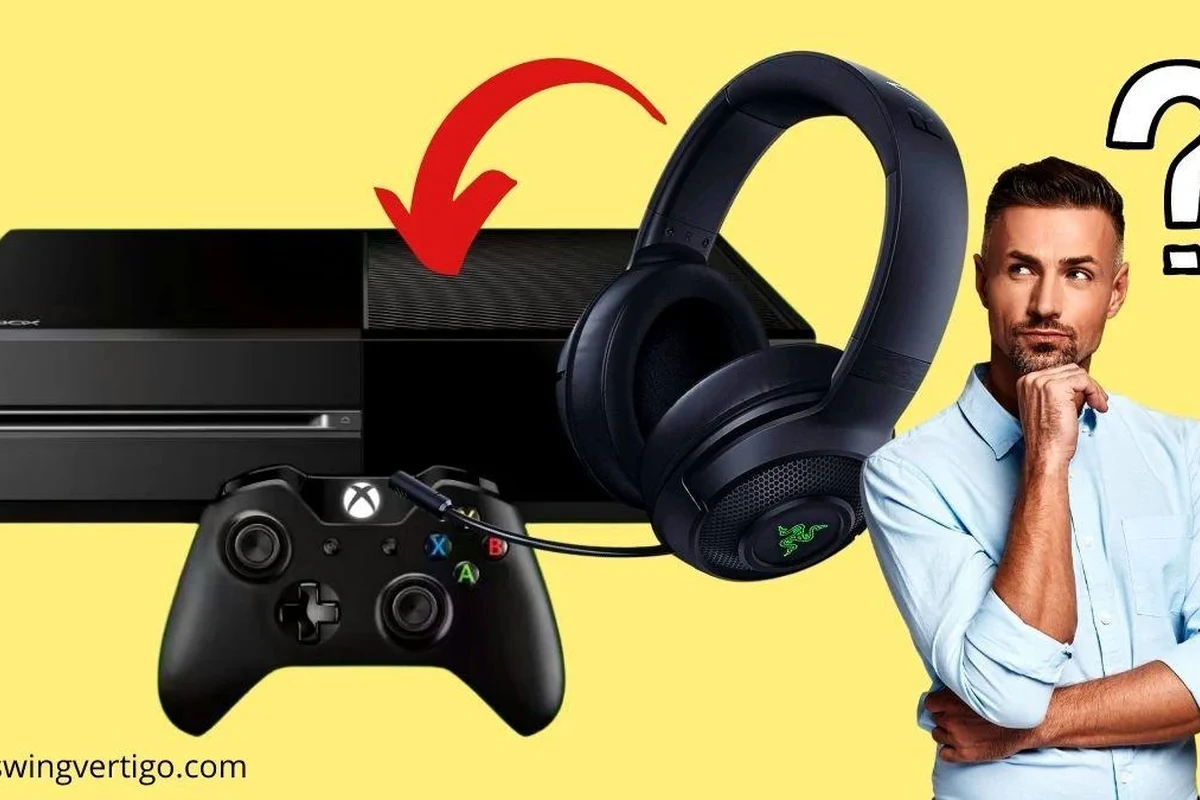
Image source: soundandsolitude.com
Xbox One is still picky about USB audio in 2026. In most cases, plugging a standard USB headset directly into the console will not give you game sound or chat audio, even if the headset works perfectly on a laptop or desktop.
That’s because Xbox One is not a general-purpose USB audio host in the same way Windows is. The console is designed around specific accessory support, so “USB headphones” can mean very different things depending on whether you have a wired USB headset, a USB DAC, or a wireless dongle headset.
USB compatibility can vary by headset model, console firmware, and whether the accessory is officially supported by Xbox. Always check the product’s Xbox compatibility notes before buying.
For readers comparing different headphone types, our types of headphones explained article is a helpful starting point. It makes it easier to understand why one connection method may work on Xbox while another fails completely.
Xbox One USB Audio Compatibility Explained for Gamers
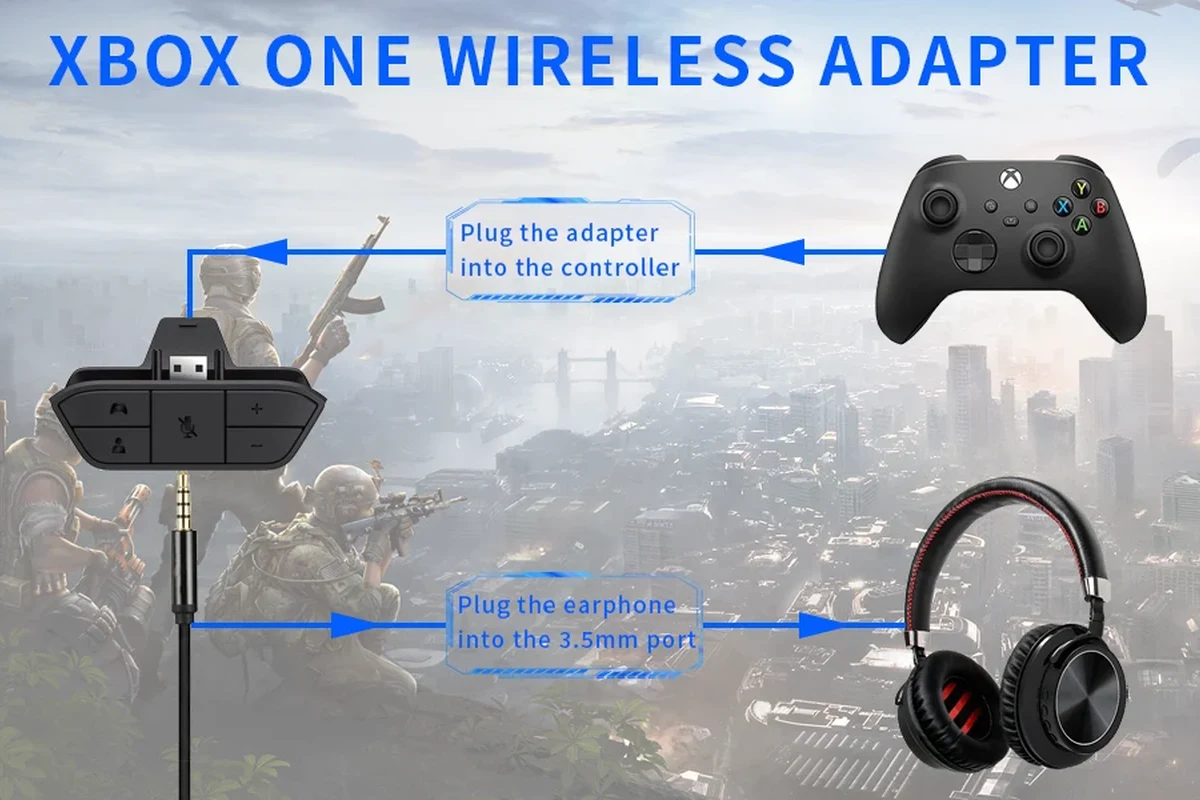
Image source: m.media-amazon.com
To use USB headphones successfully, it helps to know what the Xbox One is actually looking for. In simple terms, the console is far more reliable with headsets that use Xbox-approved wireless protocols or analog connections than with generic USB audio devices.
Why most USB headphones are recognized on Windows but not on Xbox One
Windows can usually detect a wide range of USB audio devices because it has broad driver support. Xbox One, on the other hand, is much more limited and often ignores headsets that do not match its supported accessory standards.
That’s why a headset may light up, charge, or even be detected in a limited way, but still produce no audio. The console may not know how to route sound to the headset, or it may not support the microphone path at all.
i
Some USB headsets are really USB DAC systems in disguise. They may work only when the console or display can output audio to that DAC in a supported format.
Which headset types are more likely to work: USB DACs, wireless dongles, and chat adapters
USB DACs can sometimes work if they are connected to a display, receiver, or adapter chain that the Xbox can actually feed audio into. Wireless dongle headsets are more promising, but only when the dongle is designed for Xbox compatibility.
Chat adapters are a different category. They often help route voice chat through the controller or another device, but they do not automatically make every USB headset fully compatible with Xbox One game audio.
Key audio insight: Xbox compatibility depends more on the accessory’s protocol than on the USB plug itself.A headset can be USB-powered and still not be Xbox-ready.
Step-by-Step Ways to Use USB Headphones on Xbox One
If your headset is not directly supported, you still have a few workable paths. The right method depends on whether you care most about game sound, chat audio, simplicity, or low latency.
Connecting through the controller’s 3.5mm port with a USB-to-analog workaround
If your USB headphones include a separate analog output or a removable cable setup, you may be able to bypass USB entirely and use the controller’s 3.5mm jack. This is often the most reliable workaround for basic headphone audio.
1
Look for a detachable cable, analog input, or any included 3.5mm option. If the headset is USB-only, this workaround may not apply.
2
Connect the analog cable to the Xbox controller’s 3.5mm port. Then adjust the headset volume and chat mix from the Xbox audio settings.
3
Launch a game or party chat and confirm both sound and microphone input work as expected. If the mic fails, the adapter or cable may not support it.
This method is not elegant, but it is often the simplest fix for players who already own a headset and just want it to work.
Using a monitor, TV, or AV receiver with USB audio output support
Some monitors, TVs, and AV receivers can pass audio to a USB DAC or external audio device, but this depends heavily on the model. If your display has a USB audio function, it may act as the bridge between the Xbox and your headphones.
In practice, this is more of a system workaround than a guaranteed Xbox feature. You’ll usually need to check the display’s audio output settings, the Xbox’s HDMI audio output, and whether the USB device is actually supported by the display.
Do not assume every TV USB port supports audio output. Many USB ports are for firmware updates, media playback, or power only.
Pairing wireless USB dongle headphones and checking console settings
If your headset uses a wireless USB dongle, start by plugging the dongle into the console and pairing the headset according to the manufacturer’s instructions. Some dongles are made for PC only, while others are designed for Xbox or multi-platform use.
Once paired, check the Xbox audio settings, game/chat balance, and headset volume. If the headset supports it, test both stereo game audio and microphone input separately so you can catch partial compatibility issues early.
For more on wireless behavior, our Bluetooth headphones explained guide is useful background, even though Xbox One is not the same as standard Bluetooth audio.
Best Practical Setup Options for Different Gaming Needs
The best setup is not always the most technical one. For many players, the right choice is the one that gives stable audio, low hassle, and decent comfort for long sessions.
For party chat and casual play
If you mainly want voice chat and light gaming, a controller-based analog setup is often the easiest. It is simple, inexpensive, and usually less frustrating than trying to force a USB-only headset to behave like an Xbox accessory.
Casual players should prioritize clear voice pickup, easy volume control, and a comfortable fit over advanced features. If you play for long stretches, lightweight over-ear models or comfortable in-ear options may be easier to live with than bulky headsets.
For competitive gaming and low-latency audio
Competitive players should focus on low latency and stable game audio first. In many cases, a wired connection or an Xbox-compatible wireless headset will outperform a generic USB setup that introduces delay or inconsistent chat behavior.
Low-latency audio matters more than flashy features when footsteps, reload cues, and directional sound affect gameplay. A headset with strong imaging and reliable connection quality is usually a better pick than one with extra software features you cannot use on Xbox One.
If positional audio matters to you, test a headset in a quiet room first. Strong stereo imaging often helps more than boosted bass in competitive games.
For players who want the simplest plug-and-play solution
If convenience is your top priority, the simplest route is usually an Xbox-certified headset or an analog headset that connects through the controller. These options avoid most of the USB compatibility headaches and usually require less setup.
That is especially important for family living rooms, shared consoles, or players who do not want to troubleshoot firmware, dongles, and audio routing every time they boot up a game.
Common Problems When Using USB Headphones on Xbox One
Even when a workaround looks correct on paper, audio issues can still show up. Most problems fall into a few predictable categories, and many can be solved with simple checks.
Headphones power on but no sound comes through
This usually means the headset is receiving power but not a supported audio signal. The console may detect the USB device for charging or lighting, but not for sound output.
Check whether the headset is actually Xbox-compatible, whether the dongle is designed for console use, and whether your Xbox audio output is set correctly. If the headset only works through a PC driver, it may not be supported on Xbox One at all.
Mic works on PC but not on Xbox One
This is a common frustration with USB headsets. A microphone can function perfectly on Windows while still failing on Xbox because the console does not support the same USB chat path.
Try a controller-based chat setup if the headset allows it. If not, you may need an Xbox-compatible wireless headset or a different accessory path for voice chat.
!
If you rely on voice chat for accessibility, multiplayer communication, or hearing-related support, consider speaking with an audiologist or audio specialist about the clearest and most comfortable setup for long-term use.
Audio delay, low volume, or one-sided sound
Latency, weak volume, and channel imbalance can happen when adapters or displays are doing extra processing. A cheap converter may also reduce signal quality or fail to pass the full stereo image properly.
If the sound is only coming from one ear, check the cable seating, adapter direction, balance settings, and whether the headset is designed for stereo output on Xbox. Sometimes the problem is not the headset itself, but the conversion path.
Listening at high volumes for long periods can cause hearing damage. Keep volume at 60% or below for extended sessions.
Expert Advice: Mistakes to Avoid Before Buying or Connecting USB Headphones
Many Xbox One headset problems start before the headset is even plugged in. A little checking upfront can save you from buying the wrong accessory or wasting money on the wrong adapter.
Why “USB” does not automatically mean Xbox-compatible
USB only describes the connector and data method, not console support. A headset can use USB for power, charging, firmware updates, or PC audio while still being incompatible with Xbox One.
That is why product pages should be read carefully. Look for explicit Xbox support, not just “USB headset” wording.
When a cheap adapter is a waste of money
Cheap adapters can work for basic analog conversion, but they often create more problems than they solve. Poor build quality, weak microphone support, and audio noise are common complaints with bargain converters.
If the adapter is meant to force USB-only headphones into Xbox use, be cautious. In many cases, that money is better spent on a headset designed for the console from the start.
If you are comparing headset value more broadly, our best headphones under 100 guide can help you think about budget trade-offs before you buy.
Warning signs of unsupported headset features in 2026
Be careful with headsets that advertise PC software features, virtual surround modes, or app-based EQ as their main selling point. Those extras may not transfer to Xbox One, or they may work only partially.
Also watch for vague phrases like “works with USB devices,” “universal compatibility,” or “multi-platform support” without clear Xbox mention. In 2026, that usually means you should verify compatibility before buying.
Price Comparison: Budget Workarounds vs. Better Xbox-Compatible Alternatives
Cost matters because the cheapest solution is not always the best value. Sometimes a low-cost adapter gets you basic audio, but a better headset saves time, frustration, and replacement costs later.
Typical cost of adapters, DACs, and wireless dongles
Adapter and dongle pricing can vary a lot by brand, feature set, and build quality. Budget options may be tempting, but they often come with compromises in sound quality, microphone reliability, or durability.
Budget optionVaries
Premium optionVaries by brand
If you are buying a USB-to-analog or USB-to-wireless workaround, compare the total cost against a console-ready headset. Once you add adapters, a DAC, or replacement cables, the “cheap” route may not stay cheap for long.
When it makes more sense to buy an Xbox-certified headset
It often makes more sense to buy an Xbox-certified headset if you want reliable chat, stable audio, and fewer setup steps. This is especially true for players who game often or share the console with others.
Certified headsets usually reduce guesswork. They may not be the most exciting option, but they often deliver the smoothest experience for everyday use.
| Model | Best For | Price Range |
|---|---|---|
| USB-only headset with adapter | Temporary workaround | Varies |
| Wireless dongle headset | Lower-cable gaming setup | Varies by brand |
| Xbox-certified headset | Simple plug-and-play use | Varies by brand |
Final Recap: The Easiest Way to Get USB Headphones Working on Xbox One
The easiest way to use USB headphones on Xbox One is to avoid relying on plain USB audio unless the headset or dongle is explicitly Xbox-compatible. If your headset supports analog audio, the controller’s 3.5mm jack is usually the most dependable workaround.
For the fewest problems, choose an Xbox-certified headset or a wireless accessory made for the console. That gives you the best chance of getting clean audio, working chat, and a setup that feels simple instead of frustrating.
- USB alone does not guarantee Xbox One compatibility.
- Analog controller audio is often the easiest workaround.
- Xbox-certified headsets usually offer the smoothest setup.
- Check chat, latency, and display audio settings before buying adapters.
Frequently Asked Questions
Do USB headphones work on Xbox One?
Most USB headphones do not work directly on Xbox One the way they do on PC. Compatibility depends on whether the headset or dongle is explicitly supported by Xbox.
What is better for Xbox One, wired or wireless headphones?
Wired headphones are usually simpler and more reliable for Xbox One, especially through the controller’s 3.5mm port. Wireless can work well too, but only if the headset is designed for Xbox compatibility.
Do noise cancelling headphones affect Xbox One sound quality?
Noise cancelling can help reduce background noise, but it does not fix Xbox compatibility issues. Sound quality still depends on the headset, connection type, and how the console outputs audio.
Should I choose open-back or closed-back headphones for gaming?
Closed-back headphones are usually better for Xbox One gaming because they block more outside noise and keep game sound contained. Open-back models can sound more spacious, but they leak sound and are less ideal in noisy rooms.
What specs should I check before buying Xbox headphones?
Check Xbox compatibility, connection type, microphone support, comfort, and whether the headset needs software features that may not work on console. It also helps to review weight, ear cushion material, and cable or dongle durability.
How can I improve bass, clarity, and comfort for long gaming sessions?
Use EQ carefully, keep volume at safe levels, and choose a headset with a fit that matches your head and ear shape. For long sessions, comfort and balanced sound usually matter more than heavy bass alone.
Credit : Source Post